

2026 update · Checked by Leonard Sandberg, KW Studio · Updated 22 September 2026
To start creating on Roblox, install Roblox Studio on a Windows or Mac computer, open a simple template and make one small change. Test what happens, stop the test and save your work. You can learn basic building without writing code or buying assets.
Your first goal is modest: understand one object well enough to change it deliberately.
What Actually Happens When You Open Roblox Studio
You have an idea for a game. Then Studio opens, and you have to work out where to begin.
There is a 3D scene, a toolbar and windows such as Explorer and Properties. A tutorial might show buttons in different places. Even moving around the scene can take practice.
That is a lot to learn while also trying to design a city, invent a game loop and make everything look good.
Give yourself a smaller task. Move a platform. Recolour a wall. Find out why a part falls when you press Play. Each gives you a question you can answer during the same session.
Before You Start: What You Need in 2026
Roblox Studio is free and available for Windows and Mac. Install it through Roblox’s official website and sign in with your Roblox account. The Roblox mobile app is not the Studio editor described in this guide.
Use Roblox’s Studio setup instructions to check current system requirements and installation steps.
You do not need a paid map, a plugin collection or a finished game idea for this first session.
The Blank Baseplate Trap: Starting Without a Specific Task
An empty baseplate works well if your goal is “make three platforms I can jump between.” It becomes overwhelming if your goal is “make an entire roleplay game.”
A prebuilt scene offers another way in. You can choose an existing object, inspect how it is organised and make a change. But a huge, heavily scripted game can be just as confusing as an empty scene.
Choose one of these starting points:
- A baseplate: useful for learning how a few simple parts behave.
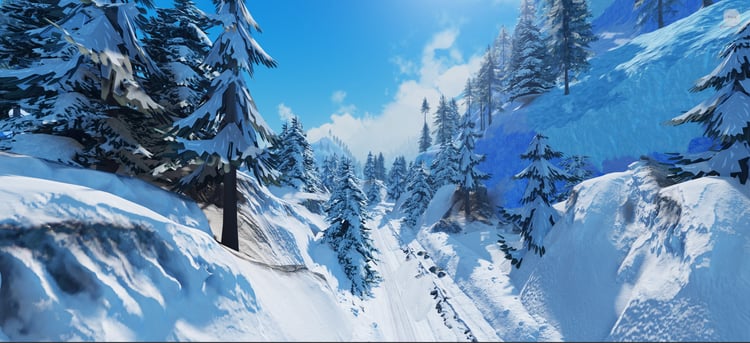
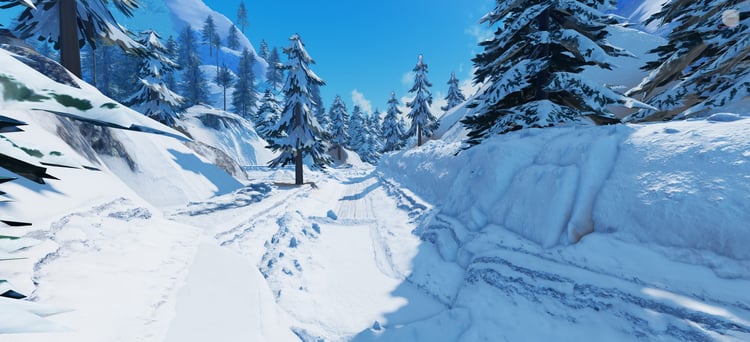
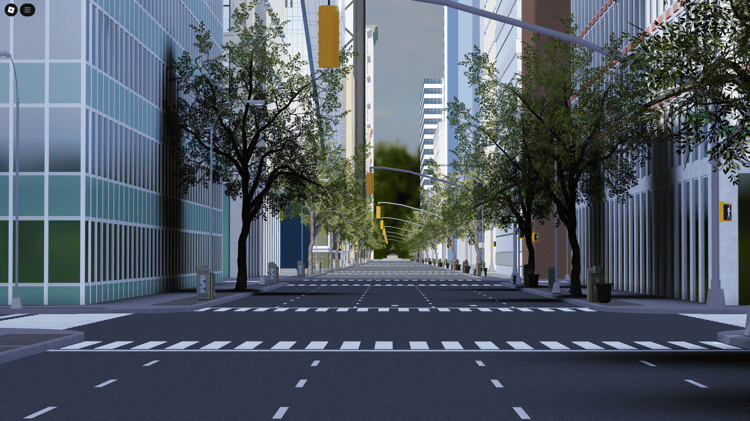
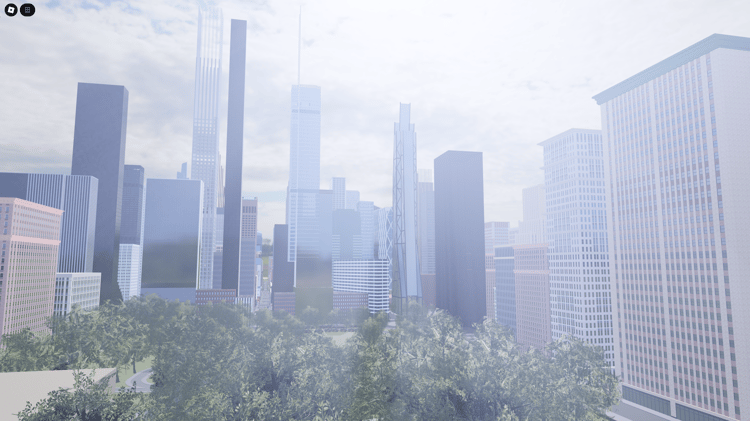
- A small template or map: useful for seeing how objects fit into an environment.
The useful question is: Can I identify one thing to change and tell whether my change worked?
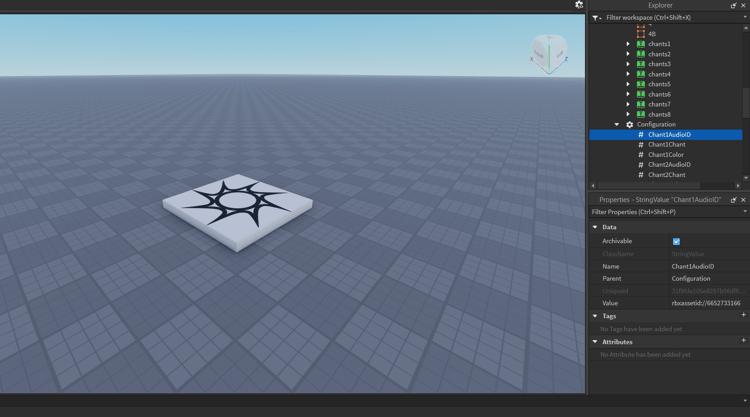
Explorer and Properties: Connect What You See to What You Edit
Explorer shows the project’s structure
Explorer lists the objects in your project in a hierarchy. Expand a branch to see what it contains.
Workspace is where the scene’s 3D objects live; a model can group related objects such as the pieces of a house.
Select a visible object, then find it in Explorer. Are you selecting the whole house or one wall inside it? That distinction matters when you move, duplicate or delete something.
In Roblox’s current documentation, Explorer is available through the Window menu or Home tab toolbar. If an older video shows a different route, check the current Explorer guide.
Properties shows the selected object’s settings
Properties changes according to what you select. For a basic part, useful settings include its size, colour and transparency.
Two more are worth learning early:
- Anchored: prevents physics from moving the part when enabled. Use it for a platform you want to stay in place.
- CanCollide: controls whether the part participates in physical collisions. It is separate from whether the part is visible.
Change one setting at a time, then observe the result. Roblox’s Properties guide and parts documentation explain these controls in more detail.
Your First Hour in Roblox Studio
Treat these timings as a suggested pace. Installation or learning the camera controls may take longer, and that is fine.
Minutes 0–10: Open one small project
Choose a simple Studio template or a small downloaded map. Practise moving the camera and selecting objects. Save a working copy before making substantial changes.
For downloaded files, check the format. RBXL and RBXLX files contain places; RBXM and RBXMX files contain models to insert into a place. Follow any instructions included with the download.
Minutes 10–25: Inspect one object
Find a wall, platform or other simple part. Select it and locate it in Explorer. Notice its name and which object contains it.
Change its colour, resize it slightly or move it. Undo the change, then repeat it. You are learning both how to edit and how to recover.
Minutes 25–40: Make one small, playable change
On a baseplate, create three anchored platforms with gaps between them. In an existing map, try widening a doorway or adjusting one section of a path.
Keep the task small enough to finish. Leave decoration, shops and progression systems for another session.
Minutes 40–50: Playtest the change
Choose Test from Studio’s testing options and press Play to enter the scene with your character. Try the route you changed. Can you make the jump? Fit through the doorway? Walk along the path?
Stop the test before making the edits you want to keep. Normal playtest changes are reset when testing ends, so make permanent adjustments in edit mode and test again.
Roblox’s testing documentation explains the difference between testing with a character and running a simulation without one.
Minutes 50–60: Save and choose the next task
Save your edited project after stopping the test. Write down one thing you understand and one thing you want to try next.
“Tomorrow I’ll add a fourth platform” is enough. You do not need to publish a public game to make this session worthwhile.
A Practical Example: Learn From One House
Suppose you want to make a village. Instead of building twenty houses immediately, study one small house in a template.
Find its model in Explorer. Identify the walls, floor and roof. Change one wall’s colour, adjust a doorway, then test whether your character can pass through it.
Next, build your own simple house beside it using basic parts. Apply what you noticed about size and organisation.
By rebuilding a small example, you can check whether you understand how the pieces fit together.
When Should You Start Scripting?
You can start learning scripting early. You do not need to master building first.
It helps to know how to select an object, find it in Explorer, edit a property and run a test. Those skills make it easier to understand what a script is changing.
Roblox uses Luau for scripting. Begin with a small behaviour, such as changing a part’s colour, before attempting an inventory, combat system or saving system. Roblox’s coding fundamentals provides a starting point.
If you use Studio Assistant or another AI tool, ask it to explain where a script belongs and what it changes. Test each addition. A script you cannot explain is difficult to fix when the project grows.
Where Free Roblox Assets Can Help
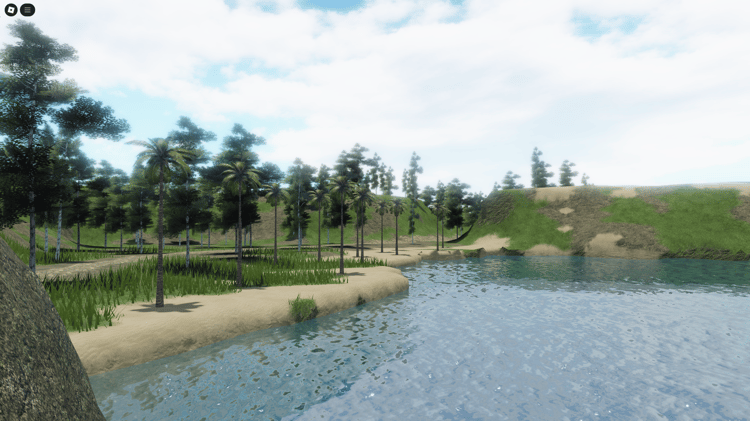
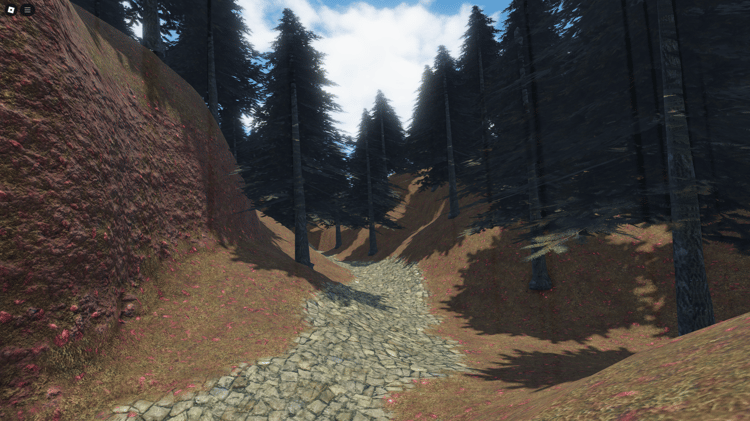
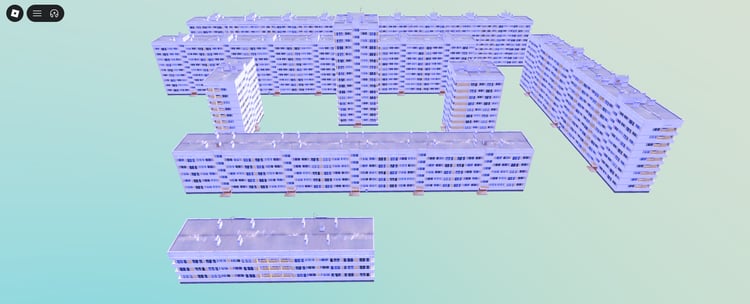
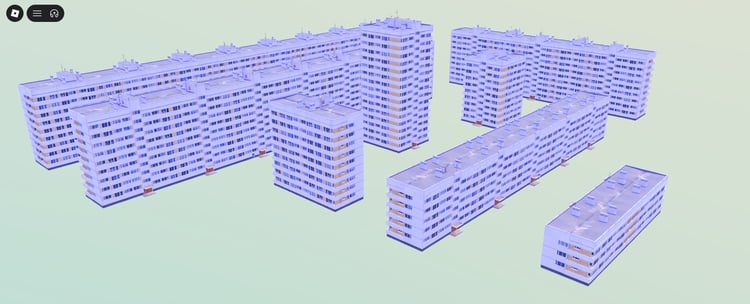
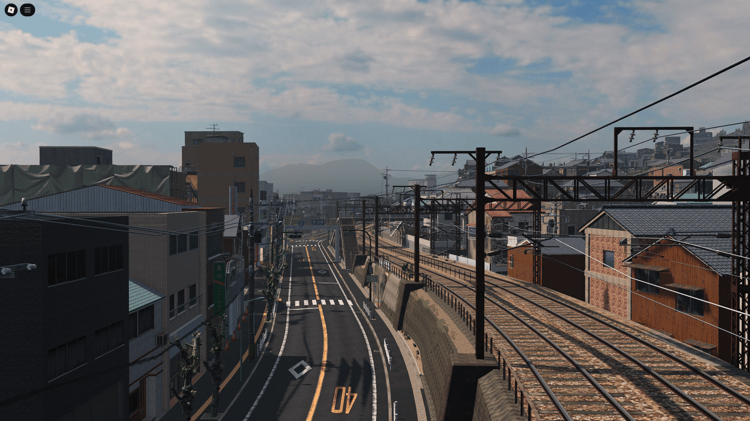
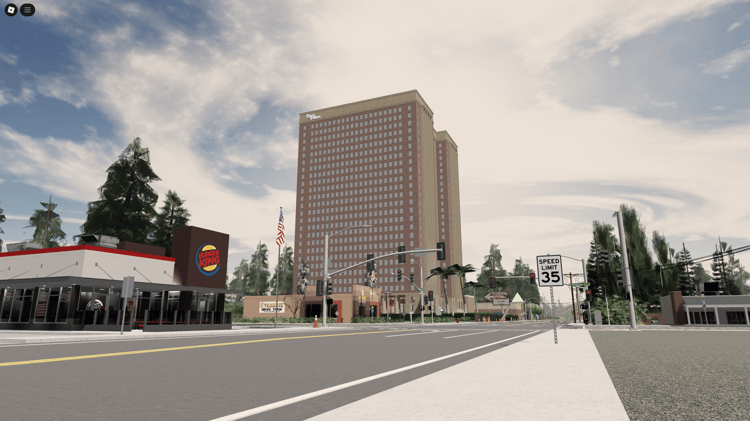
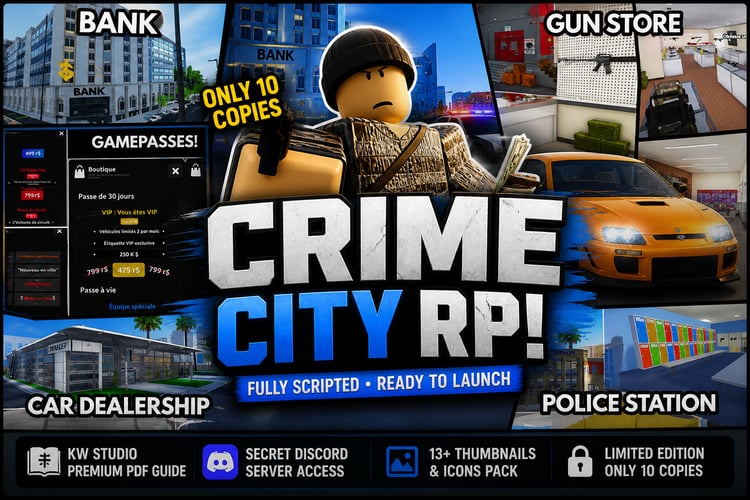
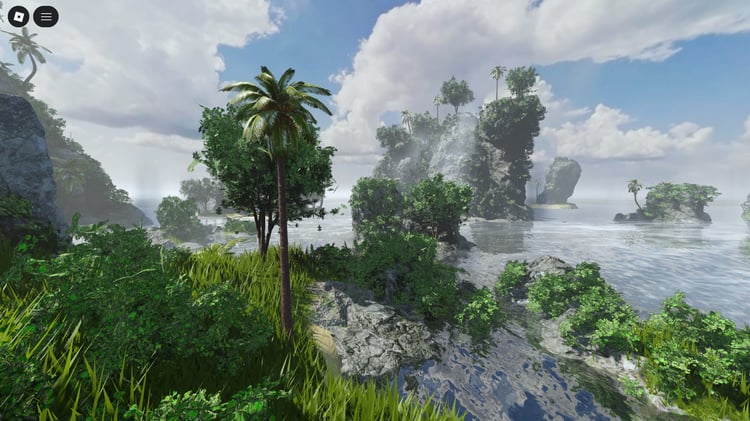
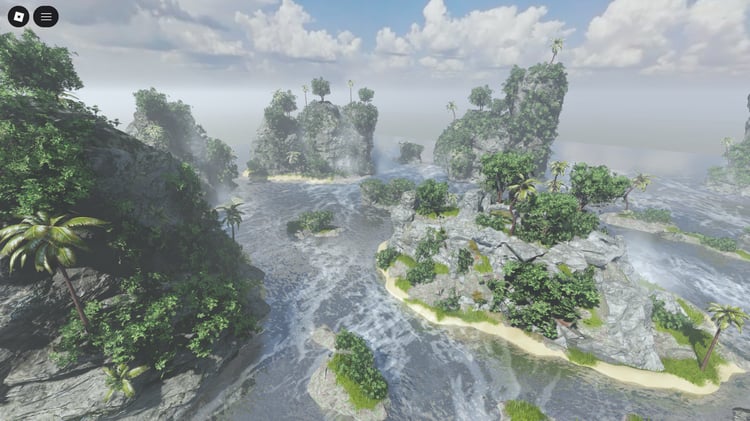
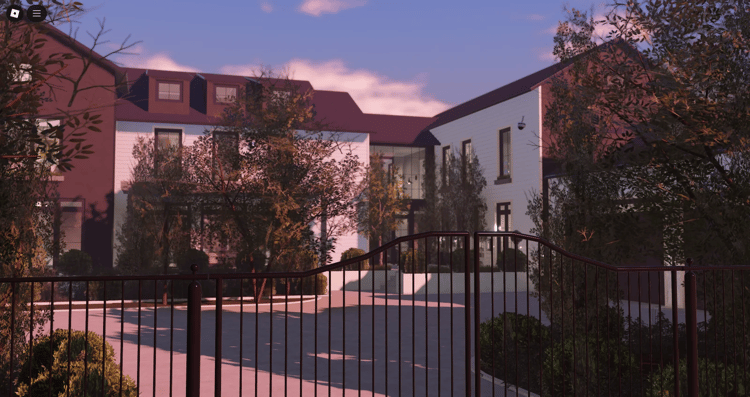
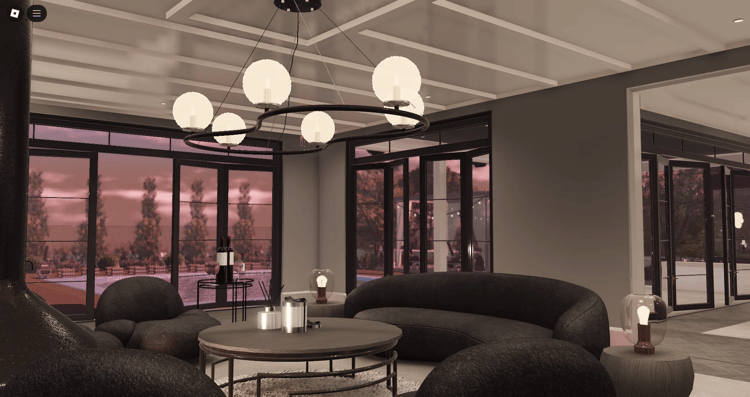
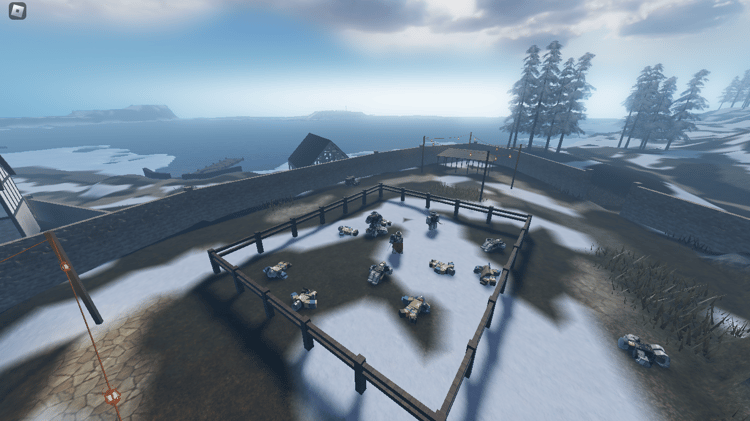
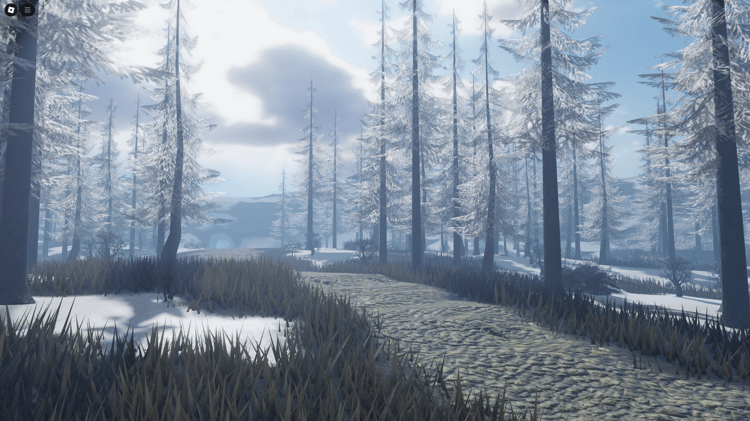
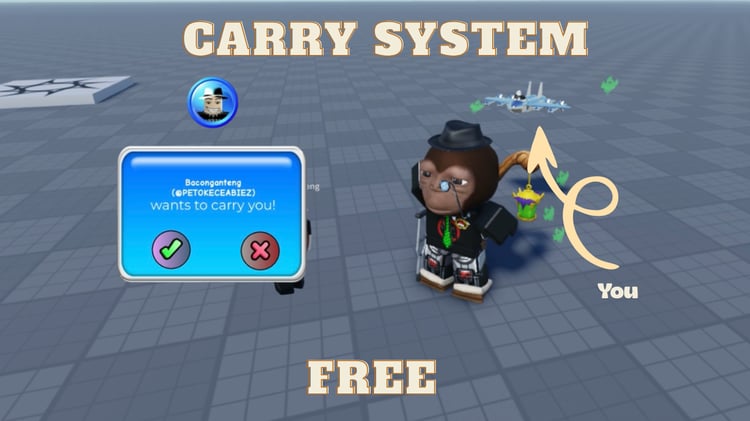
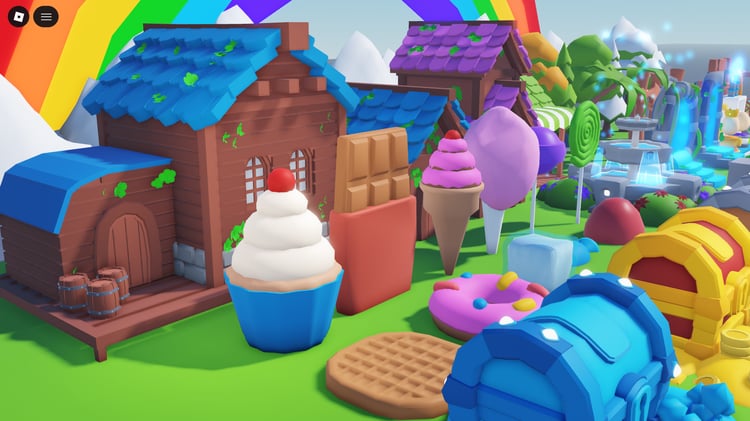
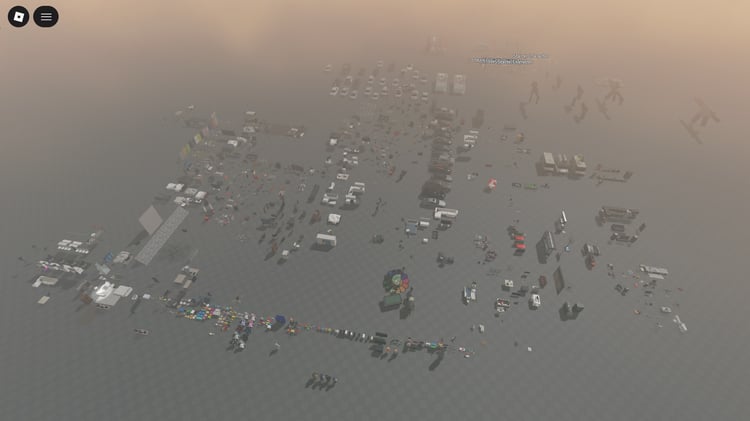
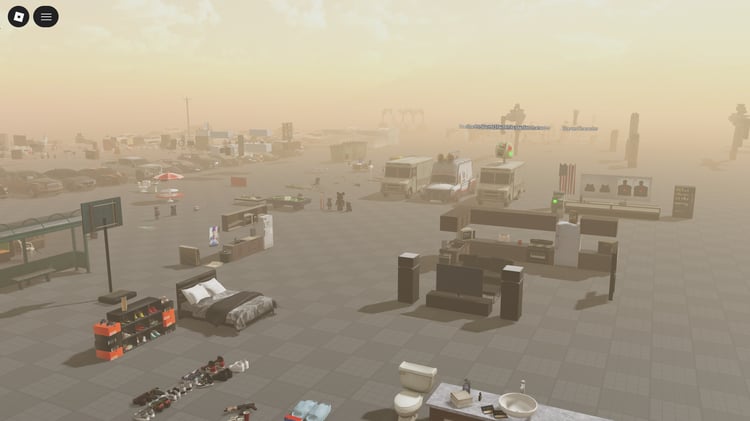
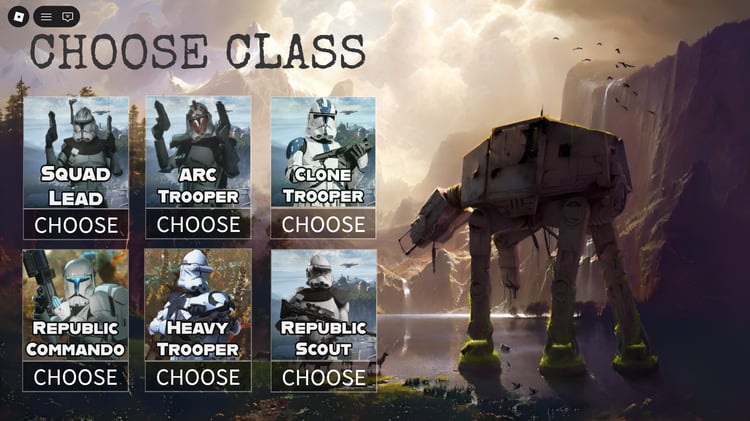
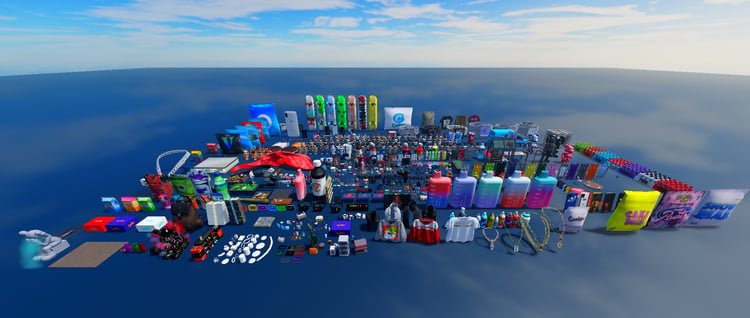
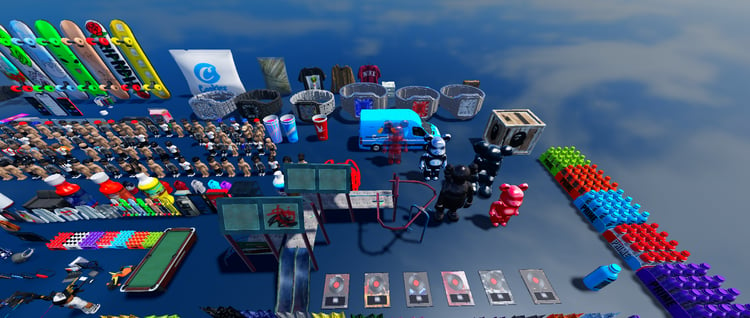
A downloadable map or model can give you something concrete to inspect and adapt. KW Studio provides these starting points:
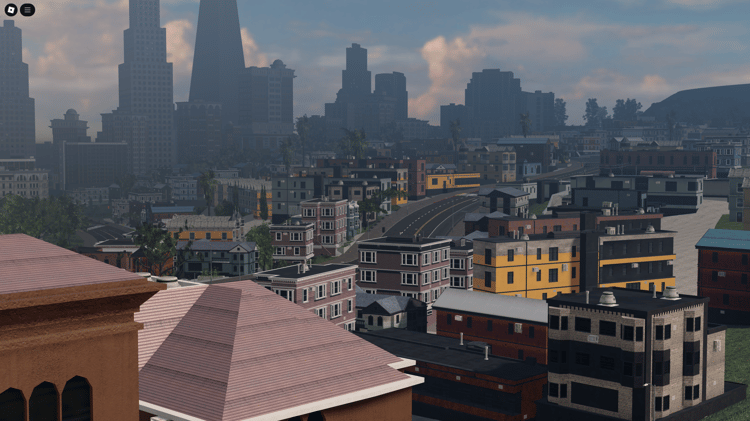
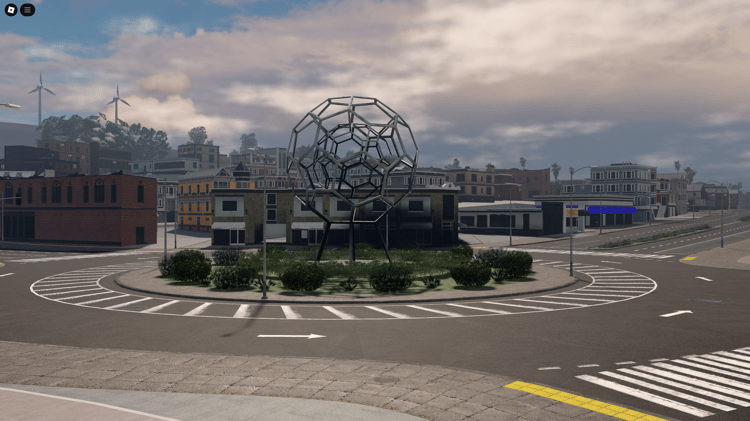
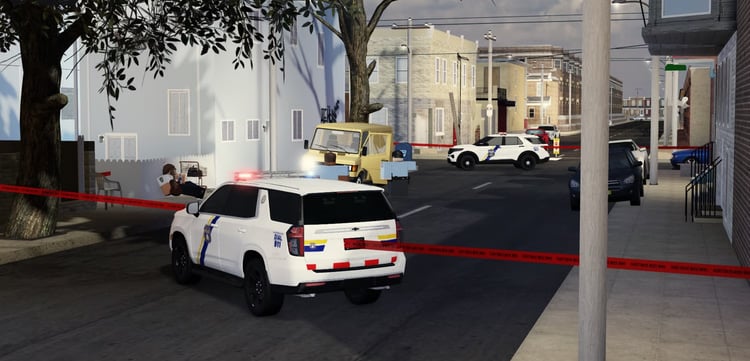
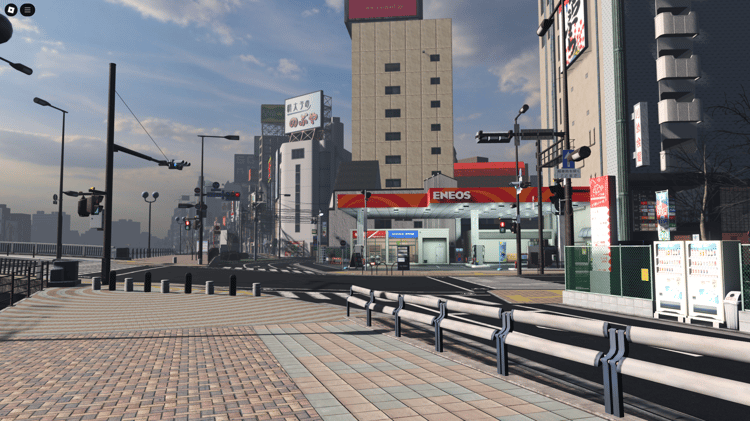
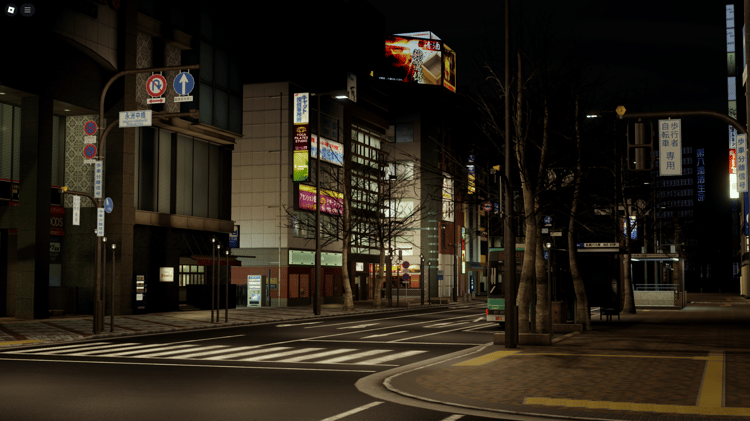
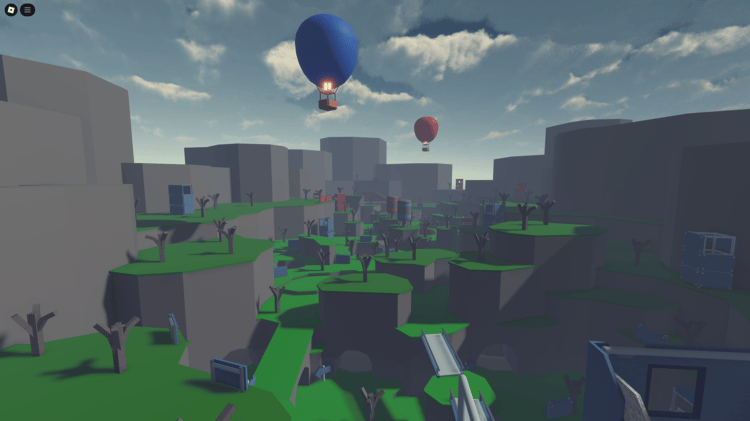
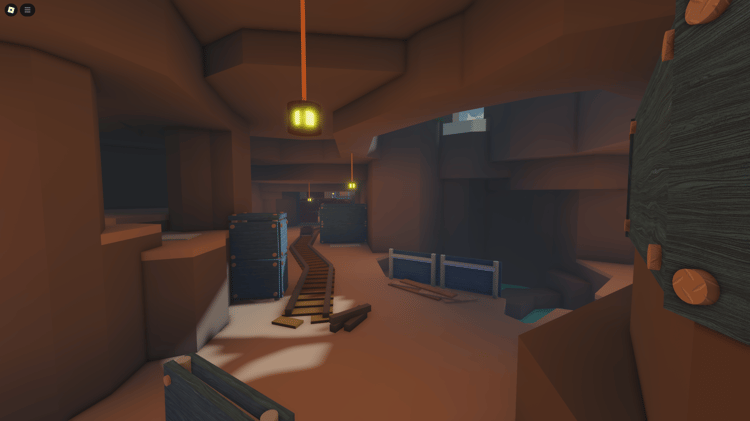
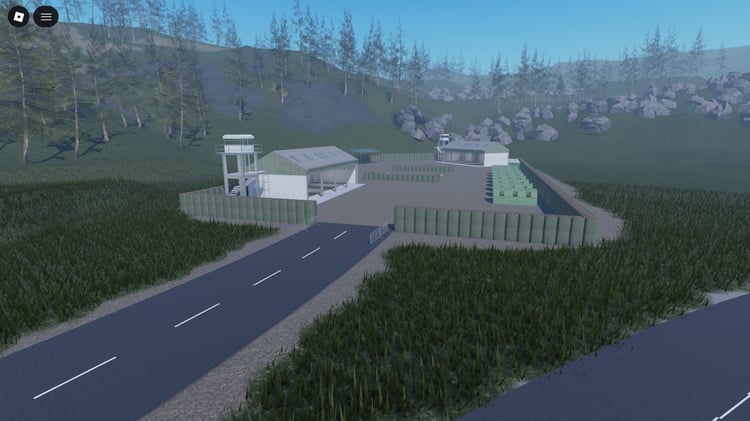
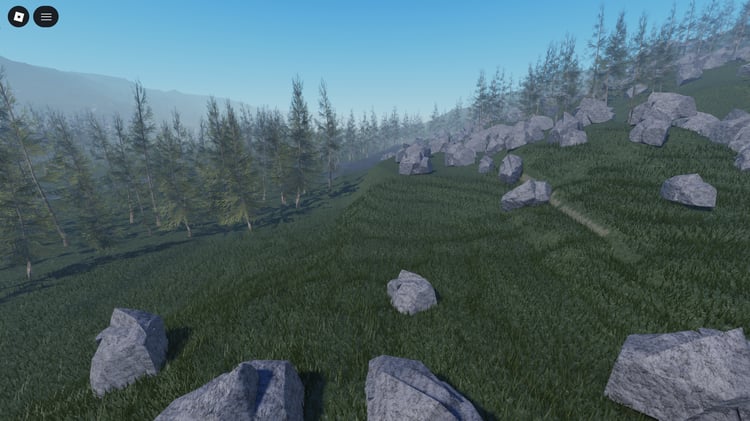
- Free Roblox maps and templates for studying environments and layouts.
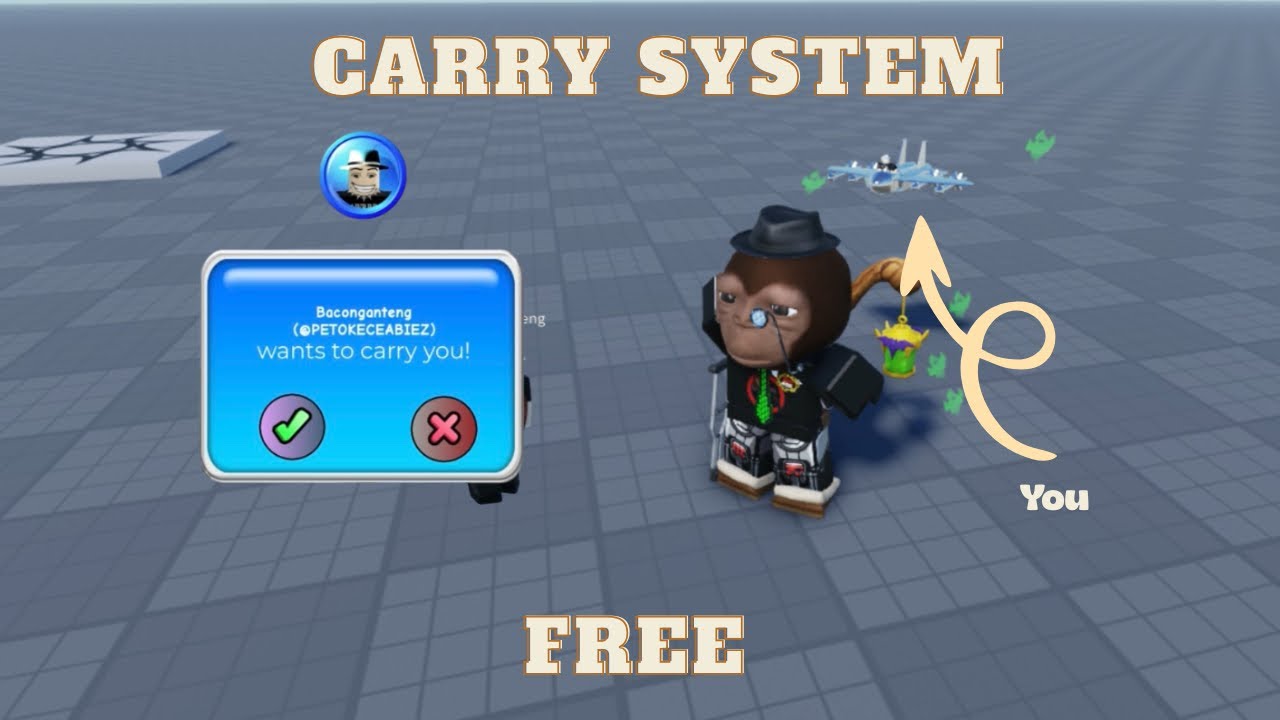
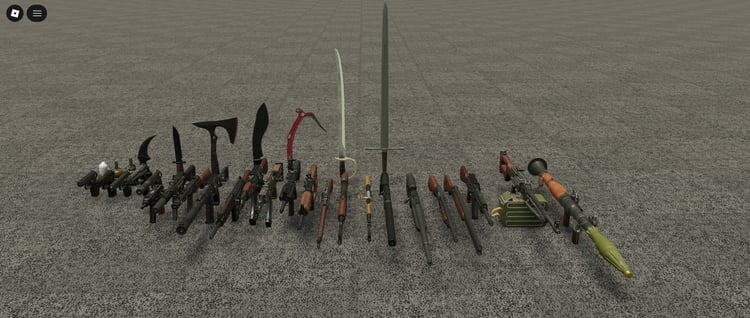
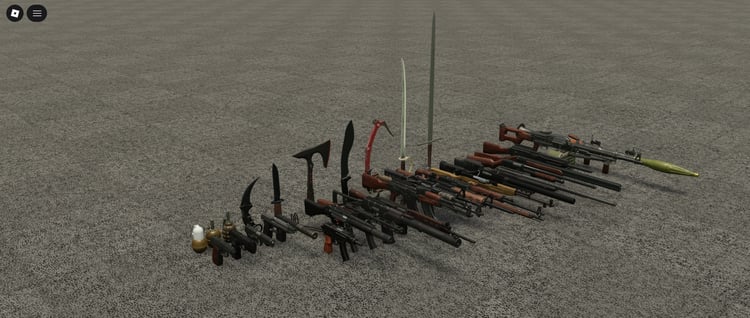
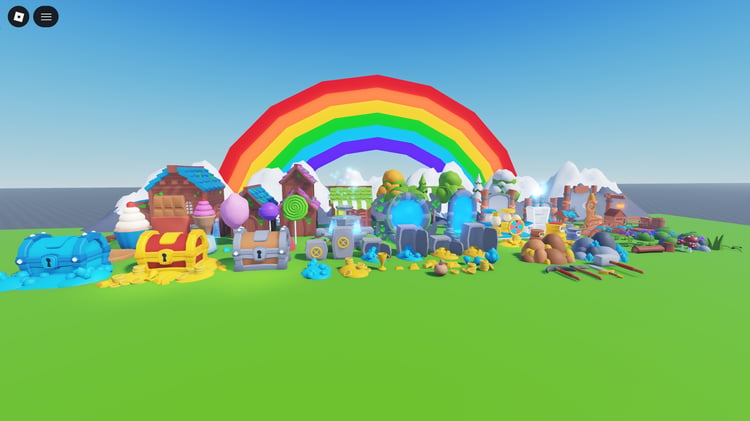
- Free Roblox assets for browsing models, packs and systems.
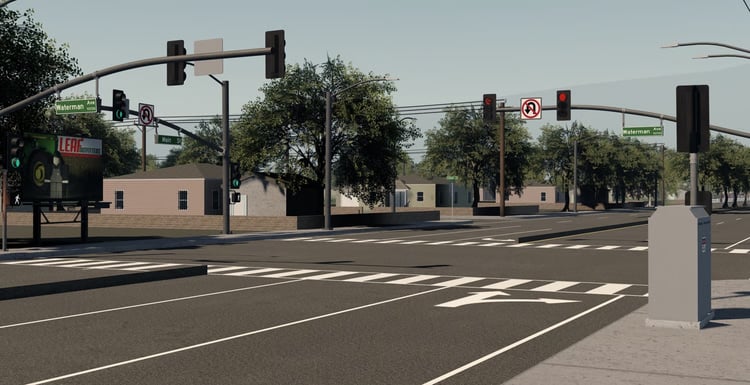
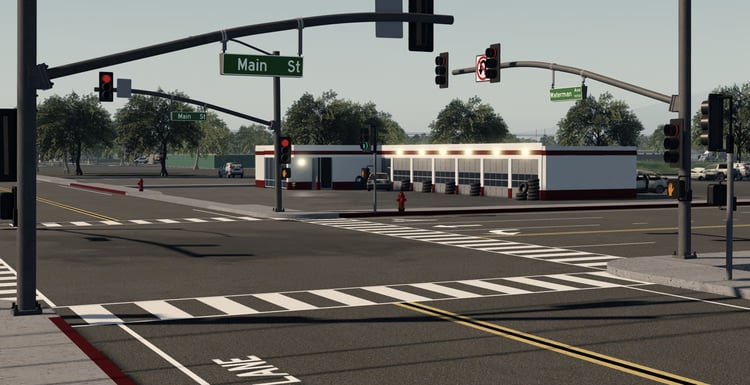
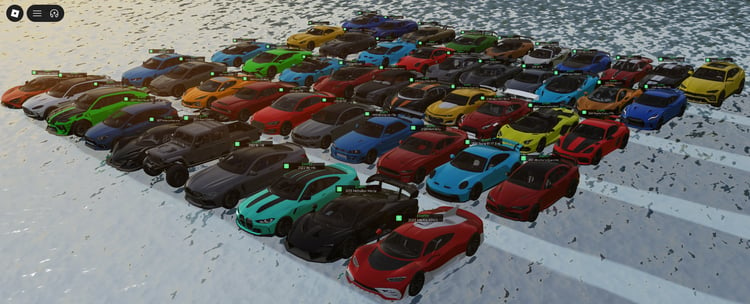
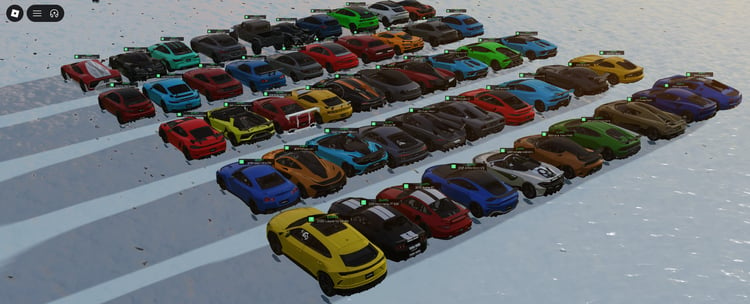
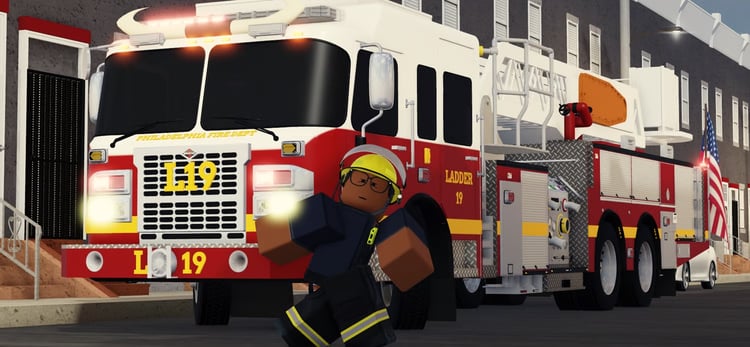
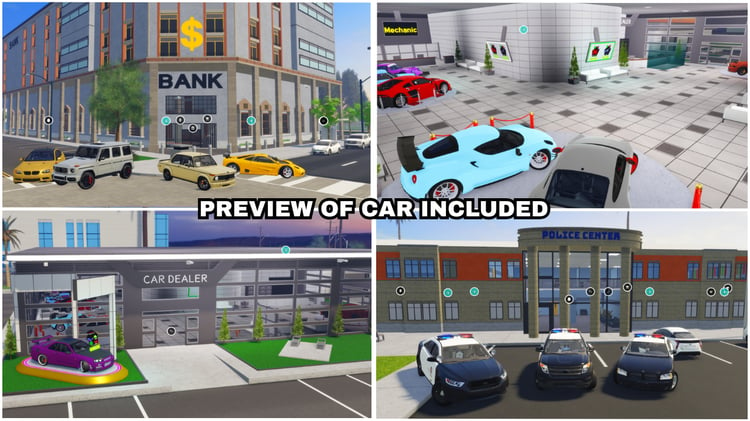
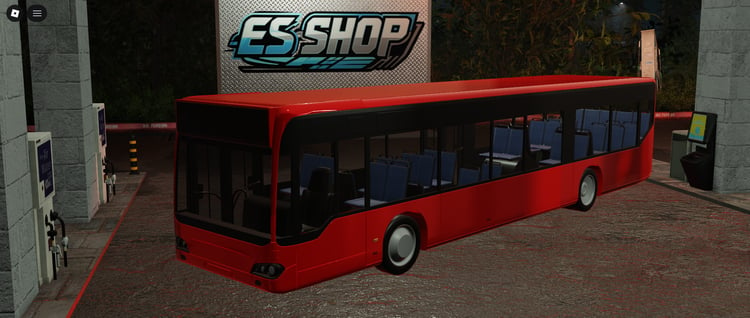
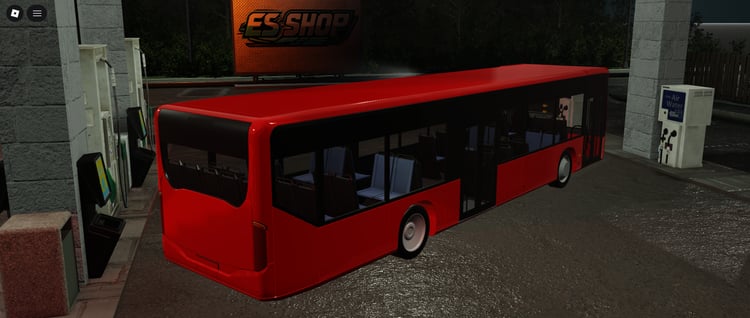
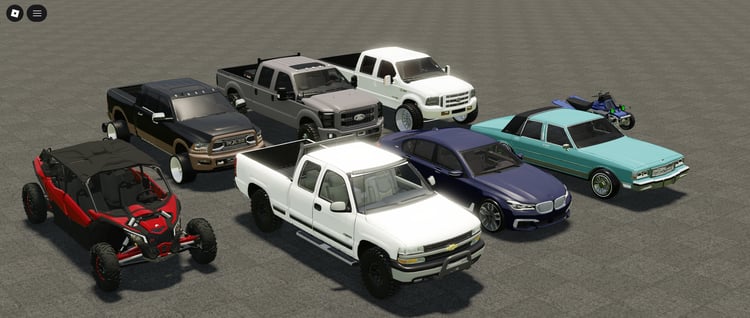
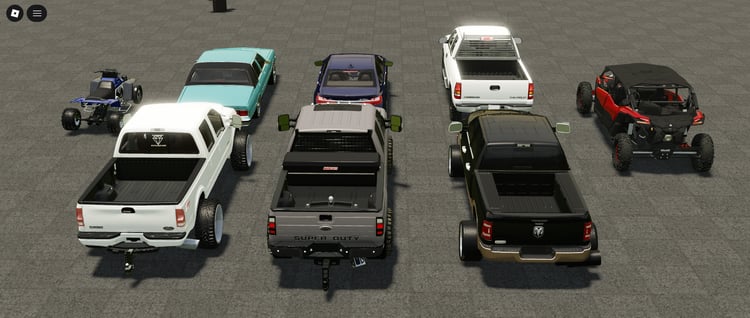
- Free Roblox vehicle models for exploring vehicle scale and structure. Check whether a listing includes driving scripts or only the model.
KW Studio is the publisher of this guide and operates these collections. They are optional resources; Studio’s own templates are enough to begin.
Choose a small resource with a clear description and setup instructions. Keep its credits and usage terms, and inspect unfamiliar scripts in a separate practice project before integrating them into your main game. If you cannot understand a complicated download yet, choose something simpler.
What to Do When You Get Stuck
The tutorial looks different from your Studio window. Check its date and identify the tool by name. Use current Creator Hub documentation to find its location.
A platform falls when the test starts. Check whether the part is anchored.
Your character passes through a wall. Check the wall’s CanCollide setting first.
You cannot tell what caused a problem. Undo your most recent change and test again. Changing several things between tests makes this harder.
A script fails. Read the Output window’s error message and check the object or line it identifies. Keep the exact error when asking for help.
You keep watching videos without making progress. Pause after one demonstrated action and try it in your own project. Continue once you understand the result.
What Counts as Progress on Day One?
A useful first session ends with something you can explain:
- You found an object in Explorer.
- You changed a setting intentionally.
- You tested the result with your character.
- You saved your work and know what to try next.
You can finish with three plain platforms and still have learned something important. Open that same project next time and give yourself one more small problem to solve.




![[FREE] Roblox Clicker Simulator basic pet hatching system](https://payhip.com/cdn-cgi/image/format=auto,width=750/https://pe56d.s3.amazonaws.com/o_1j2chs7utup8g3p195f16tq19t015.png)
![[FREE] Roblox clicker game with 2 egg options for pets](https://payhip.com/cdn-cgi/image/format=auto,width=750/https://pe56d.s3.amazonaws.com/o_1j2chse8o1bha1ea41438mso5011b.png)


![[FREE] Roblox shop menu scripted UI interface](https://payhip.com/cdn-cgi/image/format=auto,width=750/https://pe56d.s3.amazonaws.com/o_1j2cirgga1i9r12itiast7etr91c.png)
![[FREE] Scripted shop menu with item categories](https://payhip.com/cdn-cgi/image/format=auto,width=750/https://pe56d.s3.amazonaws.com/o_1j2cirn0d1vdm1uel18e85ef1opp1i.png)
![[FREE] Roblox 2 Player Battle FortBlox Tycoon arena top view](https://payhip.com/cdn-cgi/image/format=auto,width=750/https://pe56d.s3.amazonaws.com/o_1j2ch3uji1pr4144317nt13ccbud10.png)
![[FREE] Two-player base building in FortBlox Tycoon](https://payhip.com/cdn-cgi/image/format=auto,width=750/https://pe56d.s3.amazonaws.com/o_1j2ch8833ij61sf06boa7o5ci16.png)
![[FREE] Working Roblox avatar creator customization menu](https://payhip.com/cdn-cgi/image/format=auto,width=750/https://pe56d.s3.amazonaws.com/o_1j2cid0jdqjphs39e01n8710p310.png)
![[FREE] Realistic Roblox avatar with clothing options](https://payhip.com/cdn-cgi/image/format=auto,width=750/https://pe56d.s3.amazonaws.com/o_1j2cid3u91cbm1v27q821fi810ig15.png)