
What Usually Goes Wrong (Before We Even Start)
Most beginners don’t struggle with downloading assets.
They struggle right after.
Typical situation:
- You download a model or map
- You try to open it
- It either replaces your game, doesn’t appear, or ends up somewhere random
And now you’re confused.
From working with new developers using KW Studio assets, this is the key issue:
People don’t understand the difference between RBXL and RBXM—and that leads to mistakes immediately.
The Only Thing You Need to Understand First
There are two file types—and they behave completely differently:
- RBXL → full game (place file)
- RBXM → individual model (part of a game)
If you mix these up, you’ll either:
- Overwrite your project
- Or fail to import anything correctly
RBXL Files (Full Game / Map)
RBXL files are entire Roblox places.
Think of them as:
“A complete project you open—not something you insert.”
How to Open RBXL (Correct Way)
- Double-click the .rbxl file
- Roblox Studio opens it as a full place
- You can now explore everything inside
What You Should Do Next (Important)
Do NOT start building inside this file immediately.
Instead:
- Open your own game in another Studio window
- Copy what you need (models, systems, terrain)
- Paste it into your actual project
KW Studio Insight: Why Beginners Lose Progress Here
One of the most common mistakes:
- Opening an RBXL
- Starting to edit it
- Forgetting it’s not their main game
Then later:
- They can’t find their original project
- Or they overwrite something unintentionally
Treat RBXL files as source material—not your main workspace
RBXM Files (Models You Import)
RBXM files are individual models.
These are meant to be inserted into your existing game.
The Fastest Way to Import (Recommended)
- Open your game in Roblox Studio
- Drag the .rbxm file directly into the viewport
That’s it—the model will appear instantly.
If Drag & Drop Doesn’t Work
Use this method:
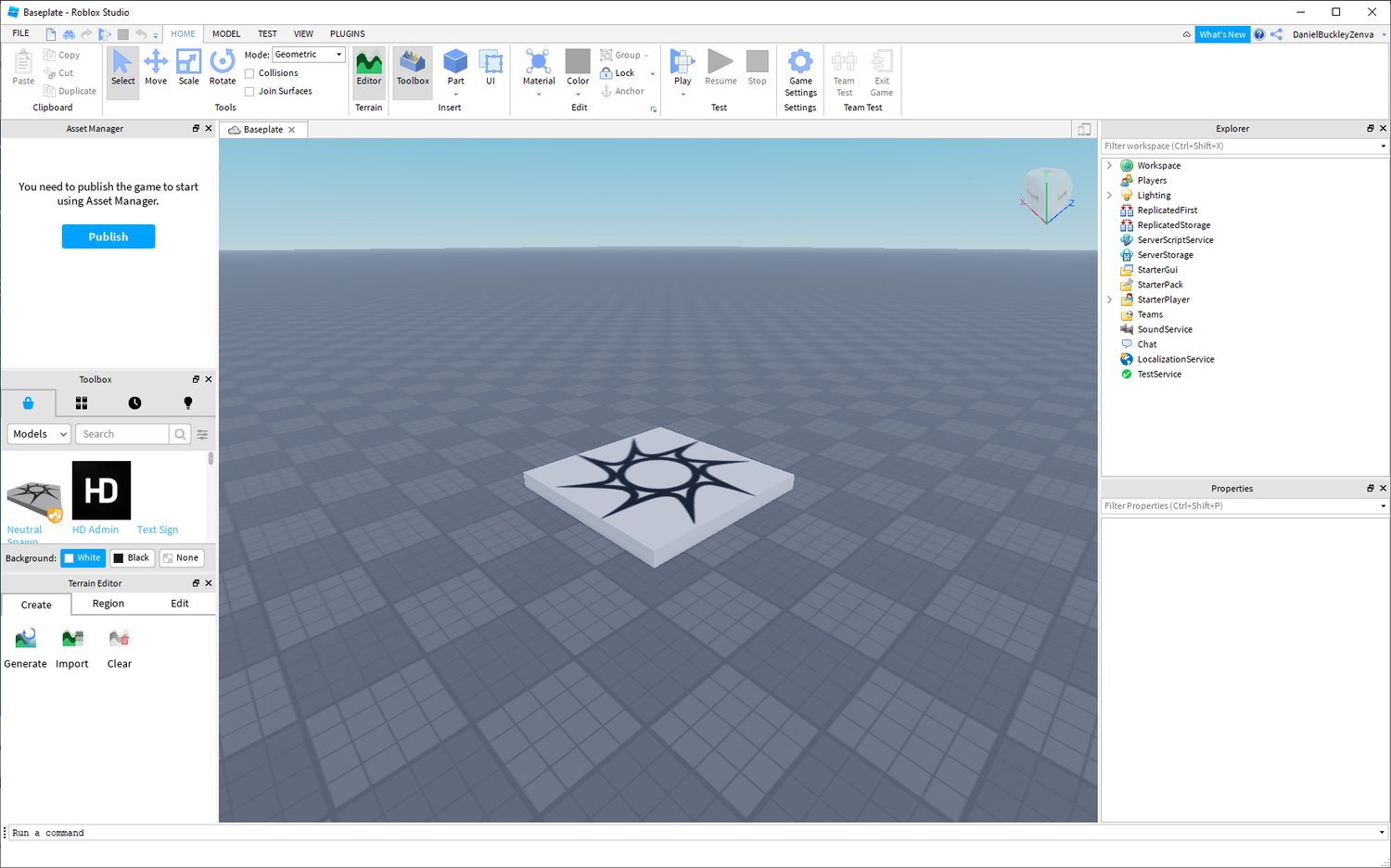
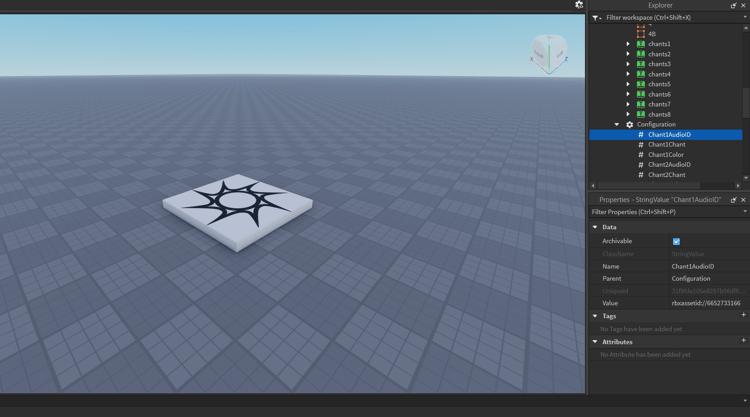
- Go to View → Explorer
- Right-click inside Explorer
- Click “Insert from File”
- Select your RBXM file
Where the Model Appears (Important Detail)
By default, it usually goes into:
- Workspace
If you don’t see it:
- Check Explorer
- It may be inside another model or folder
Expert Commentary — Leevi (Tech & Performance)
“A lot of imported models break games because developers don’t check where they’re placed. Scripts, collisions, and hierarchy all depend on correct placement inside Explorer.”
Real Example: Why an Import “Didn’t Work”
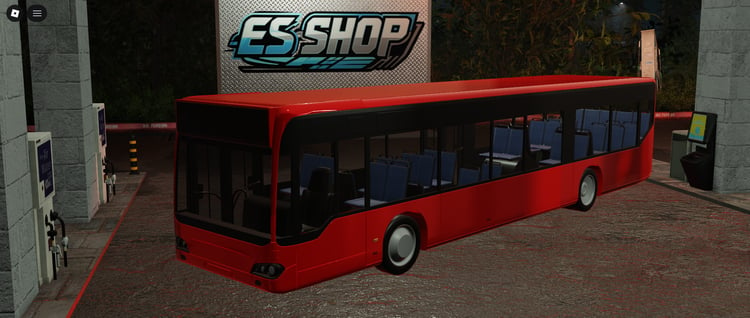
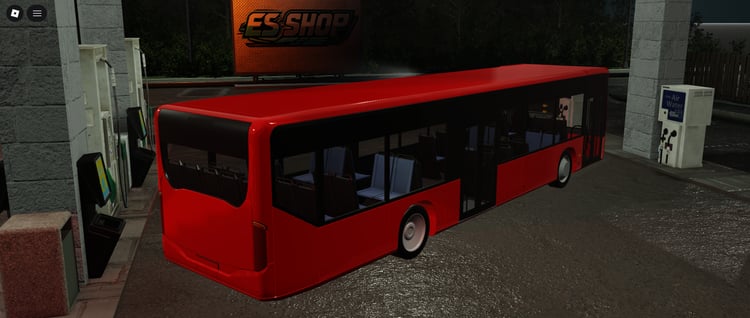
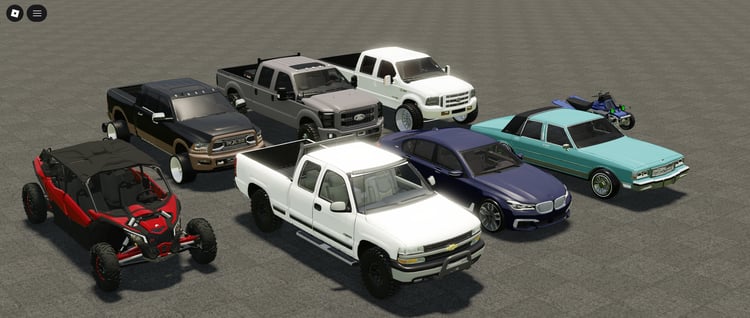
A beginner imported a vehicle model.
They said:
“It didn’t show up.”
What Actually Happened
- The model was inserted into Workspace
- But it spawned far away from the map origin
Fix
- Selected the model in Explorer
- Pressed F (Focus) in Studio
- Instantly located it
Insight
Most “import failed” issues are actually visibility or placement issues—not real errors.
Using Free Assets to Practise (Recommended)
If you're just getting started, don’t test with random files.
Use structured examples like:
- https://kwstudio.org/collection/free-roblox-products
- https://kwstudio.org/free-roblox-maps
- https://kwstudio.org/free-roblox-vehicle-models
These are built to:
- Work correctly out of the box
- Have clean structure in Explorer
- Be easy to inspect and modify
That makes learning much faster.
Expert Commentary — Dragan (Community & Learning Behavior)
“Beginners who test imports using clean, structured assets learn faster because they can actually see how everything connects. Messy models slow learning down.”
Common Mistakes When Importing Models
1. Treating RBXL Like a Model
Opening it inside your main project instead of separately.
2. Not Checking Explorer
The model exists—but you don’t know where.
3. Thinking Drag & Drop Failed
The model is just:
- Too far away
- Too small
- Inside another object
4. Ignoring Scripts Inside Models
Some assets include scripts that need:
- Correct placement
- Manual setup
Actionable Takeaways (Keep It Simple)
- Learn the difference:
- RBXL = open
- RBXM = insert
- Always check Explorer after importing
- Use F key to find imported models quickly
- Never build directly inside an RBXL file
- Start with clean, structured assets
Where KW Studio Fits Into This
Importing isn’t just a technical step—it’s your first interaction with real systems.
If the asset is:
- Poorly structured
- Unoptimized
- Randomly organized
You’ll struggle to learn from it.
That’s why structured assets matter:
- Clear hierarchy
- Predictable behavior
- Easy to modify
Final Thought
Importing assets in Roblox Studio is simple.
But understanding what you’re importing and how it fits into your game is what actually matters.
Once that clicks:
- You stop guessing
- You start controlling your workflow
- And building becomes much faster


![[FREE] Roblox Clicker Simulator basic pet hatching system](https://payhip.com/cdn-cgi/image/format=auto,width=750/https://pe56d.s3.amazonaws.com/o_1j2chs7utup8g3p195f16tq19t015.png)
![[FREE] Roblox clicker game with 2 egg options for pets](https://payhip.com/cdn-cgi/image/format=auto,width=750/https://pe56d.s3.amazonaws.com/o_1j2chse8o1bha1ea41438mso5011b.png)


![[FREE] Roblox shop menu scripted UI interface](https://payhip.com/cdn-cgi/image/format=auto,width=750/https://pe56d.s3.amazonaws.com/o_1j2cirgga1i9r12itiast7etr91c.png)
![[FREE] Scripted shop menu with item categories](https://payhip.com/cdn-cgi/image/format=auto,width=750/https://pe56d.s3.amazonaws.com/o_1j2cirn0d1vdm1uel18e85ef1opp1i.png)
![[FREE] Roblox 2 Player Battle FortBlox Tycoon arena top view](https://payhip.com/cdn-cgi/image/format=auto,width=750/https://pe56d.s3.amazonaws.com/o_1j2ch3uji1pr4144317nt13ccbud10.png)
![[FREE] Two-player base building in FortBlox Tycoon](https://payhip.com/cdn-cgi/image/format=auto,width=750/https://pe56d.s3.amazonaws.com/o_1j2ch8833ij61sf06boa7o5ci16.png)
![[FREE] Working Roblox avatar creator customization menu](https://payhip.com/cdn-cgi/image/format=auto,width=750/https://pe56d.s3.amazonaws.com/o_1j2cid0jdqjphs39e01n8710p310.png)
![[FREE] Realistic Roblox avatar with clothing options](https://payhip.com/cdn-cgi/image/format=auto,width=750/https://pe56d.s3.amazonaws.com/o_1j2cid3u91cbm1v27q821fi810ig15.png)