
2026 update · Checked by Leonard Sandberg, KW Studio · Updated 22 September 2026
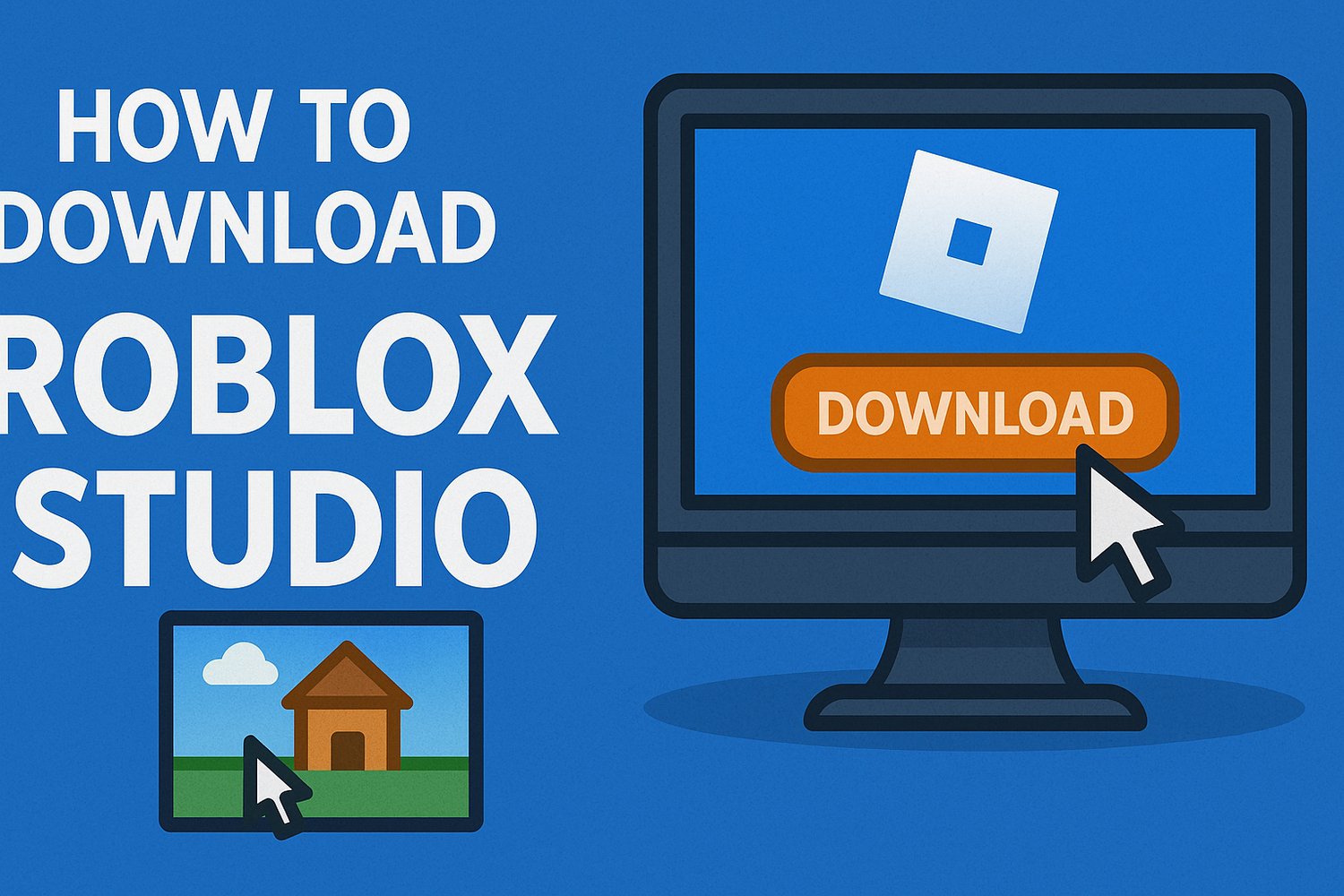
To download Roblox Studio, visit Roblox’s official creation website, download the installer for Windows or Mac, run it and sign in with your Roblox account. Studio is free. You do not need Roblox Premium, Robux or a paid asset pack to begin.
This guide covers installation, a first-project check and what to try if something does not work.
What Is Roblox Studio?
Roblox Studio is Roblox’s development application. You use it to build environments, create gameplay, test projects and prepare experiences for Roblox.
It is separate from the app you use to play Roblox games. Having Roblox installed does not necessarily mean Studio is installed too.
For scripting, Studio uses Luau, a language derived from Lua 5.1. You will often see older tutorials refer to “Lua,” but Luau is the current name to look for in Roblox’s scripting documentation.
You can place objects, change their appearance and practise building before writing your first script.
Step 1: Check Your Computer
Roblox’s Studio setup documentation, checked for this update, lists:
- Minimum: Windows 10 or macOS 10.14, with 3 GB RAM.
- Recommended: Windows 11 or macOS 14+, with 8 GB RAM.
- Recommended display resolution: 1600 × 900 or higher.
Check the linked requirements again if you are reading this later.
A mouse can make camera movement and object selection more comfortable, but it is not a requirement. Allow space on your computer for the application and your project files.
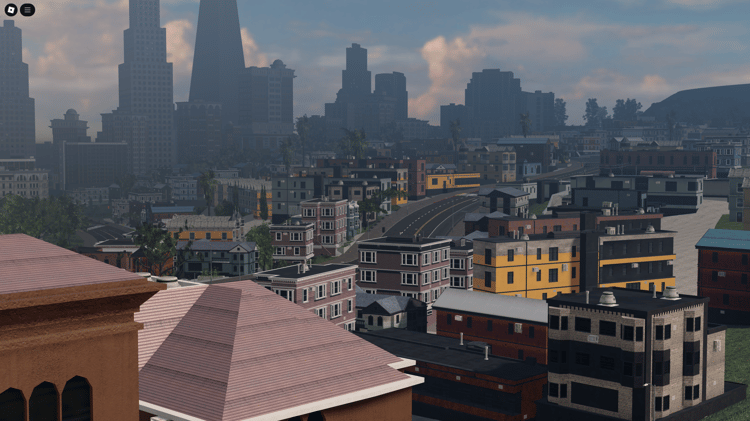
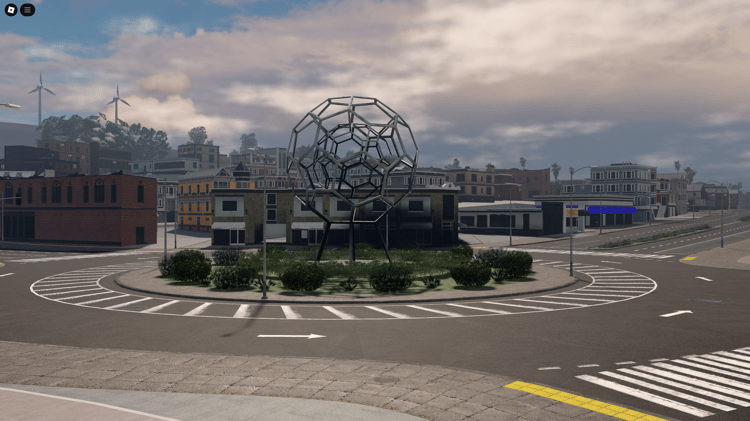
Minimum requirements do not promise smooth performance in every project. A small practice scene and a detailed city with scripts, vehicles and effects place different demands on your computer.
Step 2: Prepare Your Roblox Account
Create an account at roblox.com if you do not already have one. Use an account you intend to keep: it will be associated with your development work.
Use a unique password and configure the account security options available in your settings. Keep access to the email address associated with the account.
You should not need to give a third-party download website your Roblox password or account cookie to install Studio.
Step 3: Download and Run the Installer
Open Roblox’s official creation page and follow its Studio download prompt. Button wording can change; Roblox also maintains installation instructions.
On Windows
Open the downloaded RobloxStudio.exe file and follow the installer prompts. When installation finishes, launch Studio.
On Mac
Open the downloaded RobloxStudio.dmg file and follow the installation prompts. Launch Studio when it is ready.
Downloading the file alone does not complete installation. If nothing opens, check your browser’s download history and run the downloaded installer.
Step 4: Sign In and Open a Small Project
Sign in with your Roblox account, then choose a simple template such as a baseplate.
For this first check, avoid importing a large map or installing plugins. You want to establish that the editor opens and a basic scene works.
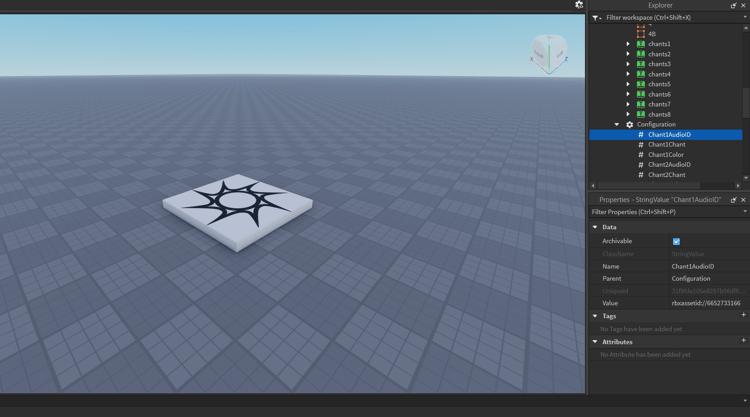
Find these two windows:
- Explorer: the hierarchy of objects in your project.
- Properties: the settings for the object you have selected.
If a tutorial shows a different interface, look up the tool by name. Roblox’s Explorer guide and Properties guide are better references for current controls than an old screenshot.
Step 5: Check That Building, Testing and Saving Work
Make a small change you can recognise:
- Insert a basic part.
- Change its colour or size.
- Enable Anchored so physics does not move it.
- Select Test in the testing options and press Play.
- Walk around the part, then stop the test.
- Save the project from edit mode.
This confirms that you can edit a scene, enter it as a player and keep your work. Make permanent changes outside the running test; normal playtest changes are reset when testing ends.
Roblox’s parts guide explains the building controls, and its testing guide explains the available test modes.
Saving your practice project and releasing a public experience are separate tasks. Public publishing has its own requirements, which you can check when you are ready to release something.
If Roblox Studio Will Not Install or Open
The download finished, but nothing happened
Look in your browser’s downloads and open the installer. Check whether an installation prompt is waiting behind another window.
The installer shows an error
Keep the exact error message. Check your operating system against the current requirements and confirm you have available disk space. If the download was interrupted, obtain a fresh installer from Roblox’s official website.
On a school or work computer, software installation may require the administrator’s permission.
Studio opens, but you cannot sign in
Try signing in to Roblox through your browser. This helps separate an account-access problem from a problem limited to Studio. If you cannot access your account there either, use Roblox’s account-recovery process.
Studio opens, but feels slow
Compare a simple baseplate with the project that feels slow. If only the larger project struggles, investigate its content and scripts as well as your hardware. If both struggle, close other demanding applications and check your computer’s resources.
Roblox’s performance guidance explains how content, scripting and device limits affect an experience. Slow performance is not automatically proof that your computer needs replacing.
You still cannot resolve the problem
Contact Roblox Support with your operating system, the exact error and what you tried. “The installer closes after I open it” is more useful than “Roblox is broken.”
What Should You Do After Installation?
Choose one small task: make three platforms, change a doorway or move a few objects into a model. Test the result before adding another feature.
You can use Studio’s own templates or study a small downloaded resource. KW Studio’s free Roblox assets collection offers another place to look for examples.
KW Studio publishes this guide and operates that collection. Its assets are optional; you can begin with Studio alone.
Read each listing’s included files and setup notes. Inspect unfamiliar scripts in a separate practice project. A free price or marketplace listing does not guarantee compatibility, performance or suitability for your game.
Quick Questions About Downloading Roblox Studio
Can I install Roblox Studio on a phone or tablet?
The Studio desktop application covered here is available for Windows and Mac. Installing the Roblox mobile player does not install Studio.
Do I need coding experience?
No. You can start with building and editing objects, then introduce small Luau scripts as you learn. You do not need to understand an entire game system before experimenting.
Do I need to download a separate “2026 version”?
Use the current official installer. Keep Studio updated; if an Update button appears, save your work and follow the prompt to update and restart.
How do I know I am ready to start learning?
If you can open a project, change a part, run a test and save your work, you have completed the setup this guide is aiming for. Return to that project and make one more change you can explain.

![[FREE] Roblox Clicker Simulator basic pet hatching system](https://payhip.com/cdn-cgi/image/format=auto,width=750/https://pe56d.s3.amazonaws.com/o_1j2chs7utup8g3p195f16tq19t015.png)
![[FREE] Roblox clicker game with 2 egg options for pets](https://payhip.com/cdn-cgi/image/format=auto,width=750/https://pe56d.s3.amazonaws.com/o_1j2chse8o1bha1ea41438mso5011b.png)


![[FREE] Roblox shop menu scripted UI interface](https://payhip.com/cdn-cgi/image/format=auto,width=750/https://pe56d.s3.amazonaws.com/o_1j2cirgga1i9r12itiast7etr91c.png)
![[FREE] Scripted shop menu with item categories](https://payhip.com/cdn-cgi/image/format=auto,width=750/https://pe56d.s3.amazonaws.com/o_1j2cirn0d1vdm1uel18e85ef1opp1i.png)
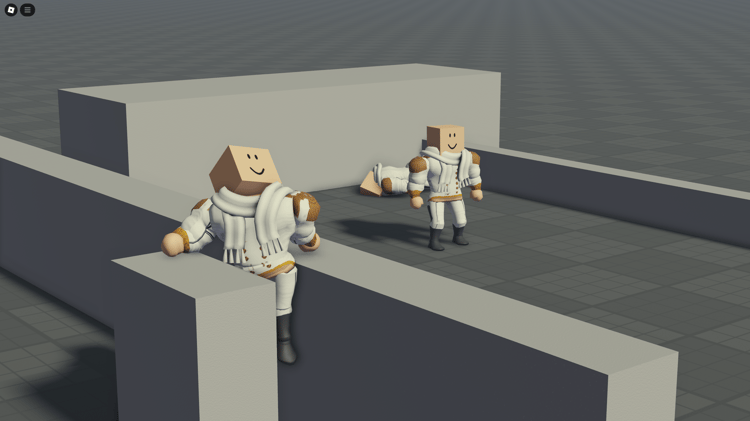
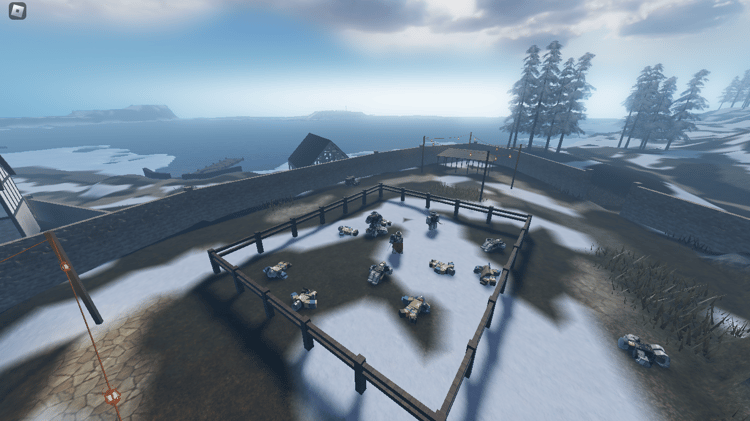
![[FREE] Roblox 2 Player Battle FortBlox Tycoon arena top view](https://payhip.com/cdn-cgi/image/format=auto,width=750/https://pe56d.s3.amazonaws.com/o_1j2ch3uji1pr4144317nt13ccbud10.png)
![[FREE] Two-player base building in FortBlox Tycoon](https://payhip.com/cdn-cgi/image/format=auto,width=750/https://pe56d.s3.amazonaws.com/o_1j2ch8833ij61sf06boa7o5ci16.png)
![[FREE] Working Roblox avatar creator customization menu](https://payhip.com/cdn-cgi/image/format=auto,width=750/https://pe56d.s3.amazonaws.com/o_1j2cid0jdqjphs39e01n8710p310.png)
![[FREE] Realistic Roblox avatar with clothing options](https://payhip.com/cdn-cgi/image/format=auto,width=750/https://pe56d.s3.amazonaws.com/o_1j2cid3u91cbm1v27q821fi810ig15.png)