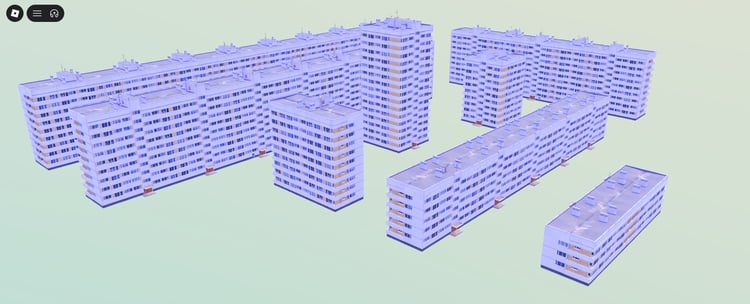

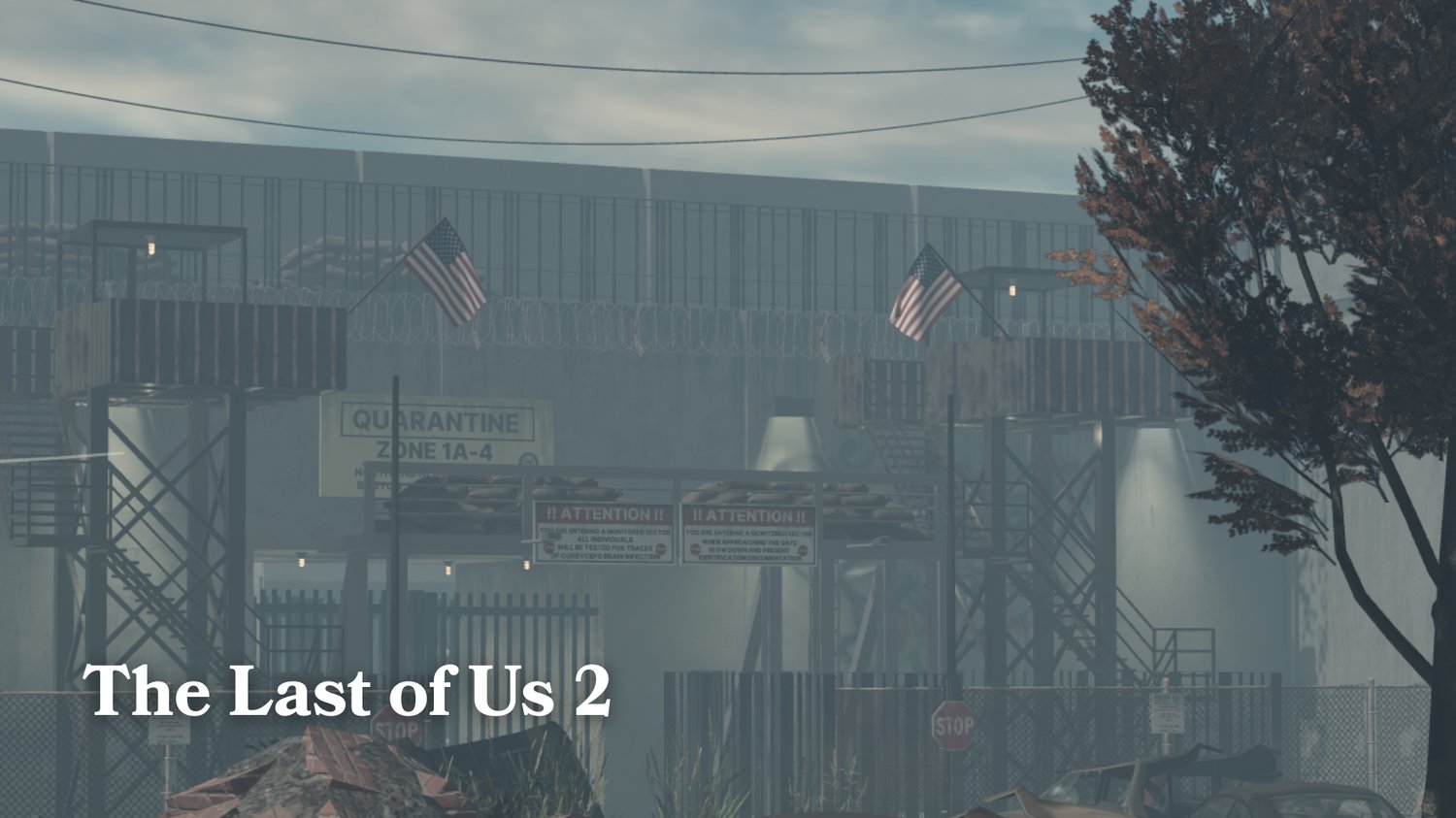
Before buying a Roblox asset, check exactly what is included, what technical knowledge it requires, how it may be used and whether the seller provides enough evidence to support the product description.
A polished thumbnail is not proof that a Roblox product will fit your project.
1. Confirm the Product Scope
Determine whether you are buying:
- A complete .rbxl place file
- An .rbxm model
- Individual scripts
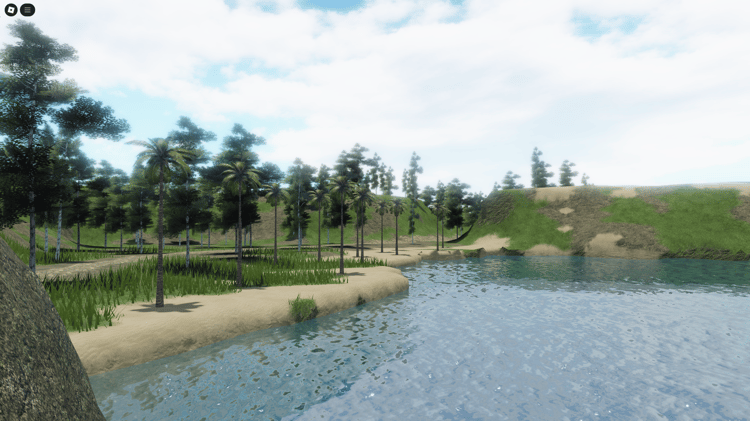
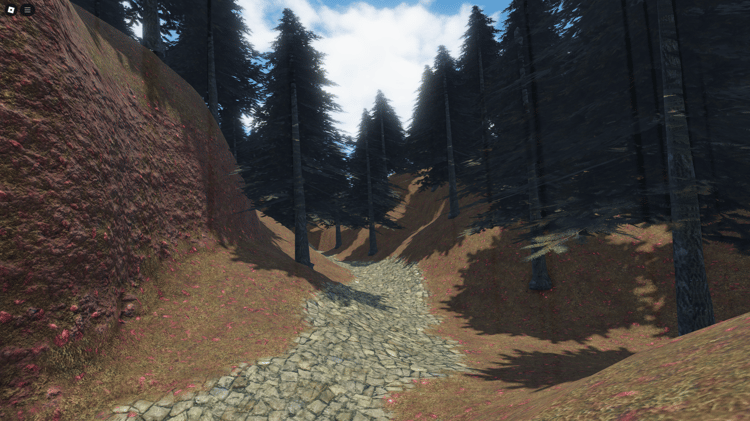
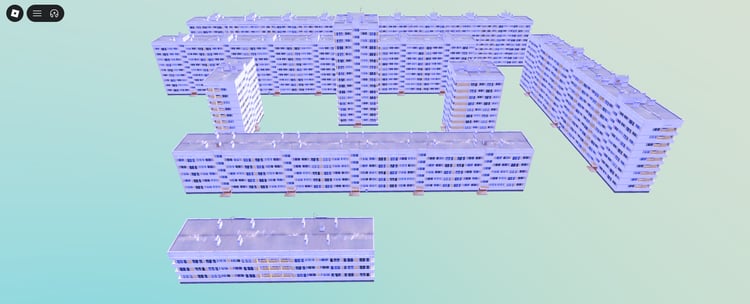
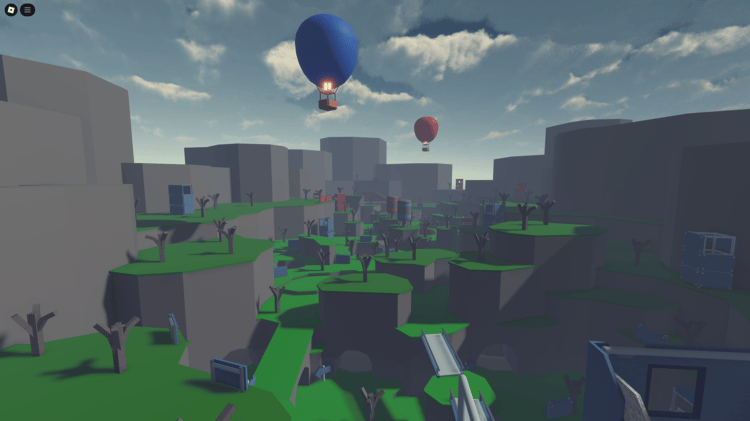
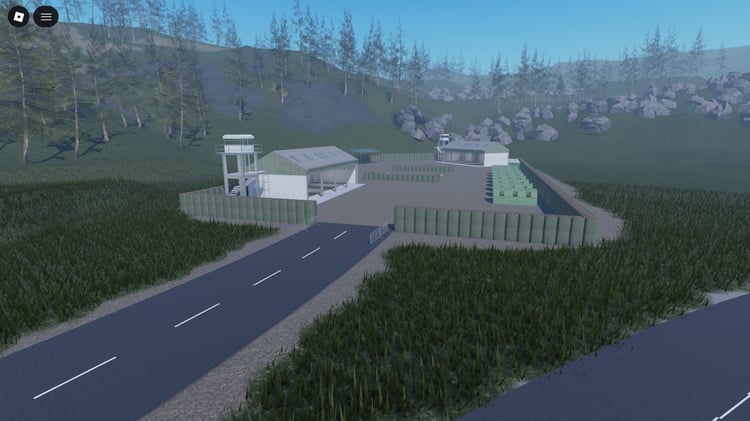
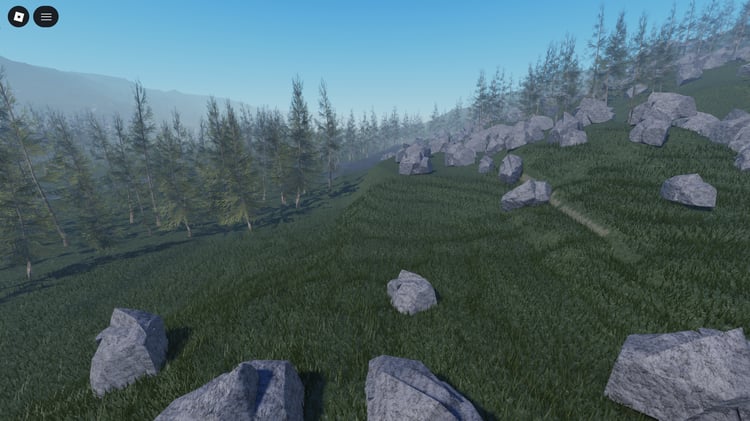
- A visual map without gameplay
- A complete scripted template
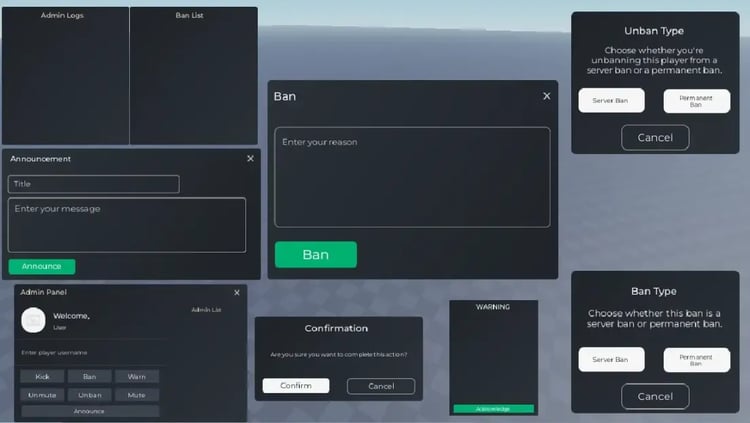
- A user-interface design
- A configurable system
Words such as “scripted” or “complete” can mean different things between sellers. Look for a feature list that explains what is genuinely functional.
2. Review the Evidence
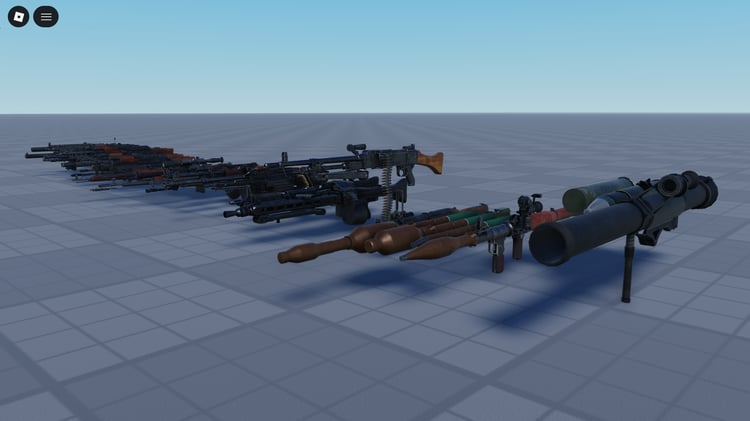
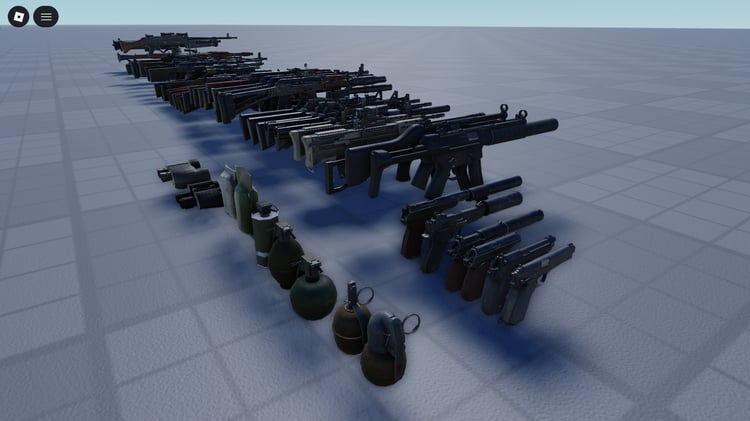
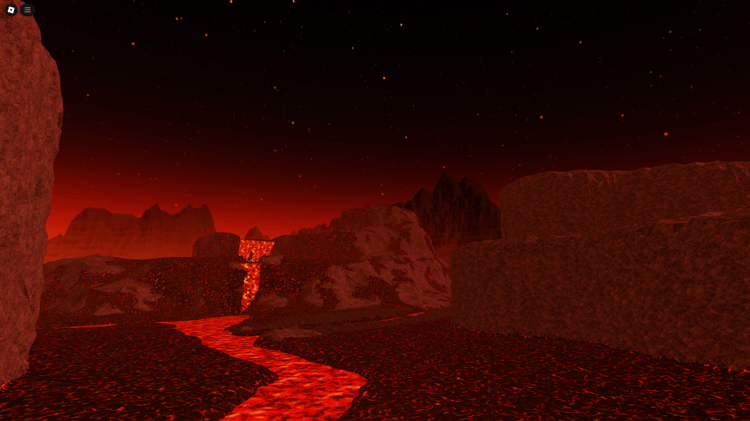
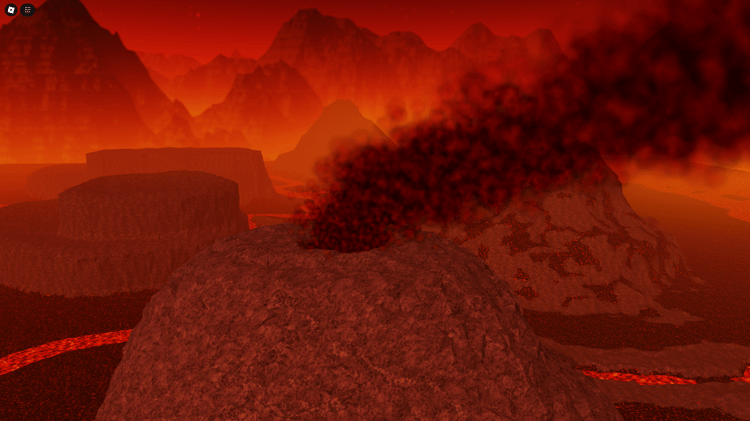
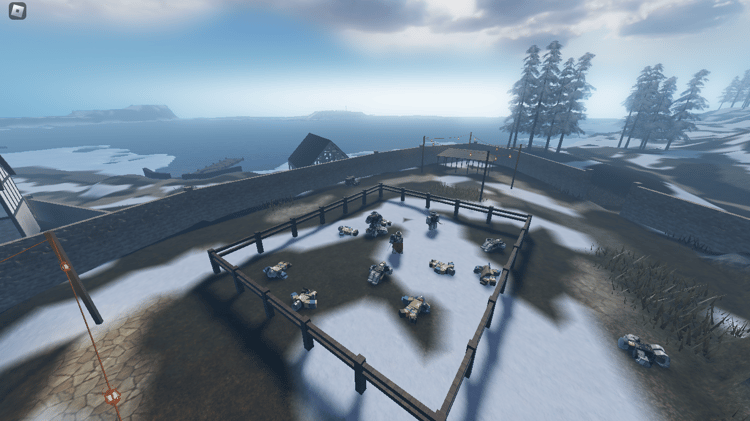
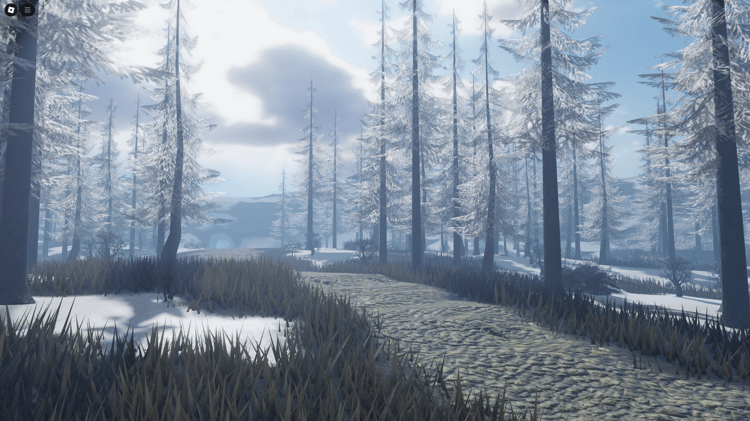
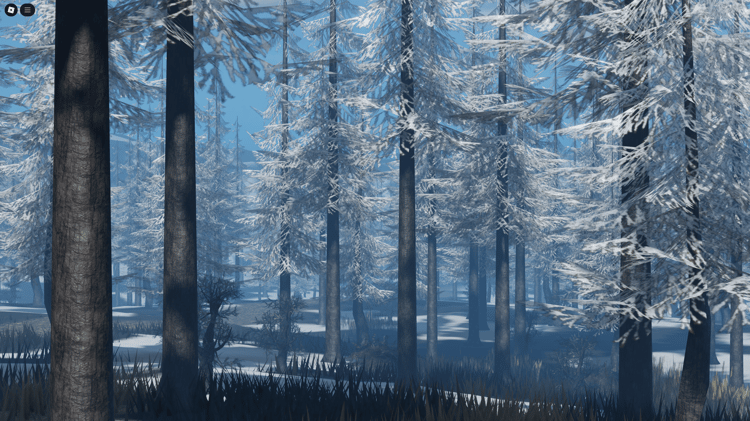
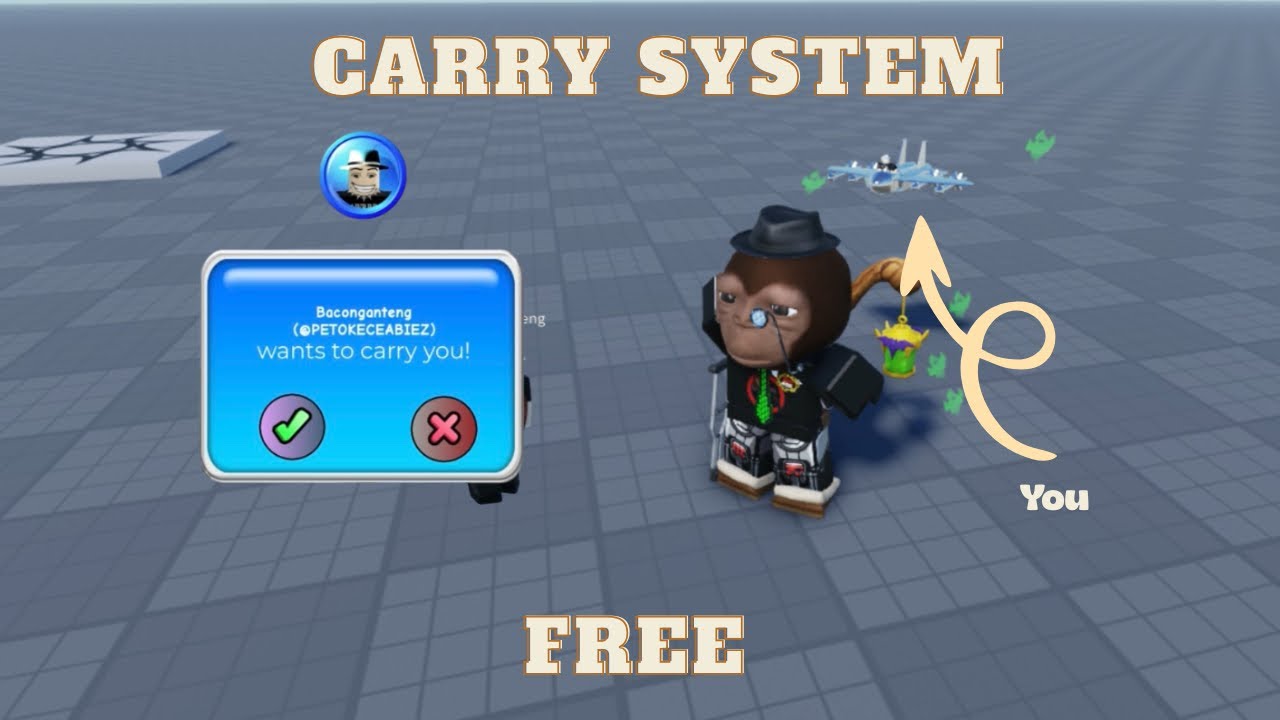
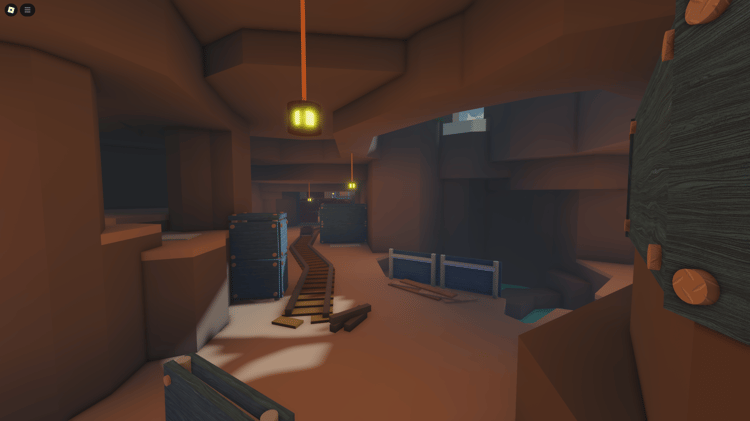
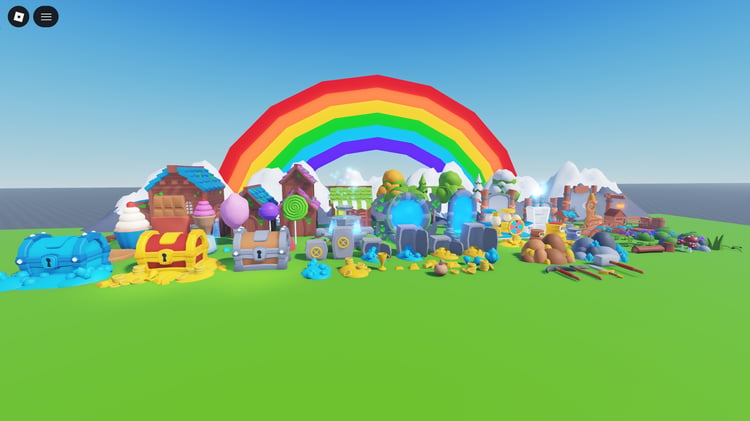
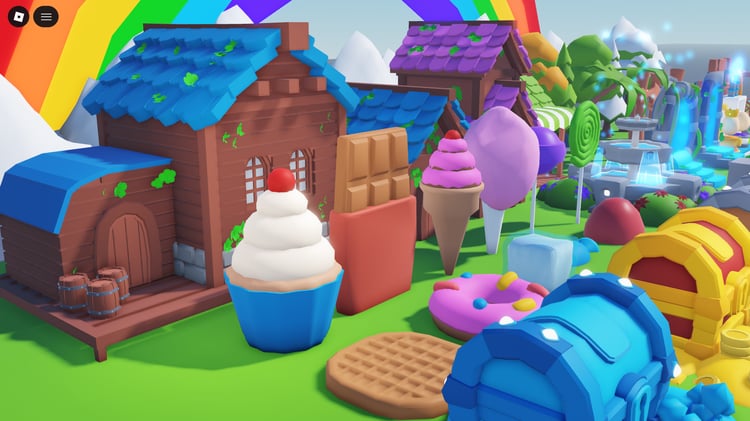
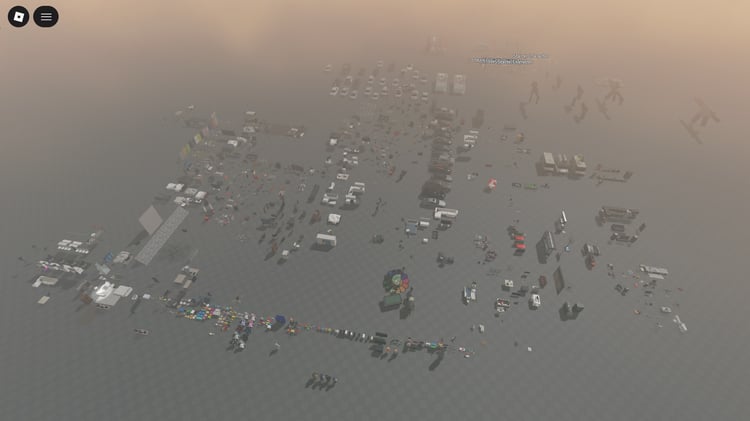
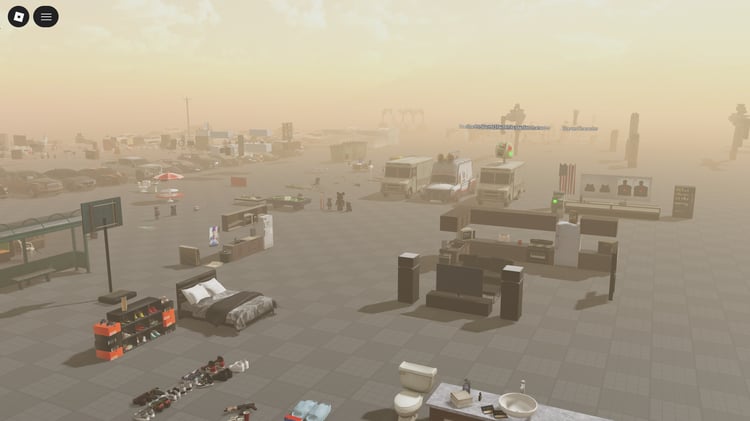
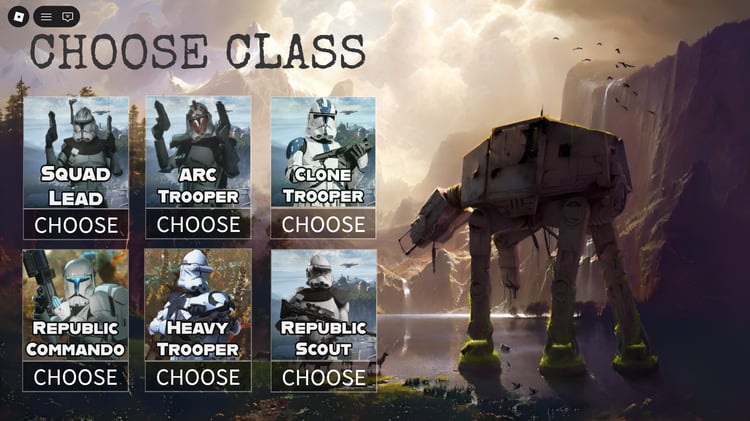
Strong product pages normally include multiple screenshots, a demonstration video or a detailed explanation of the systems.
Look for evidence of:
- Gameplay running inside Roblox
- Interiors and inaccessible areas
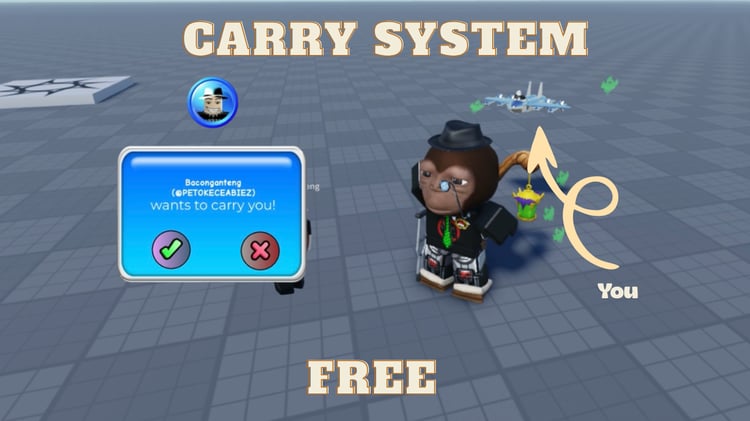
- User-interface functionality
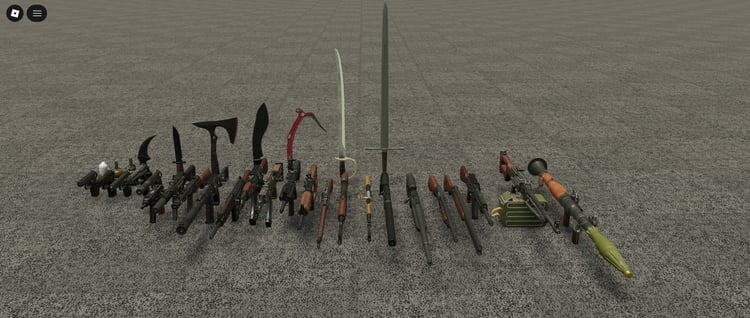
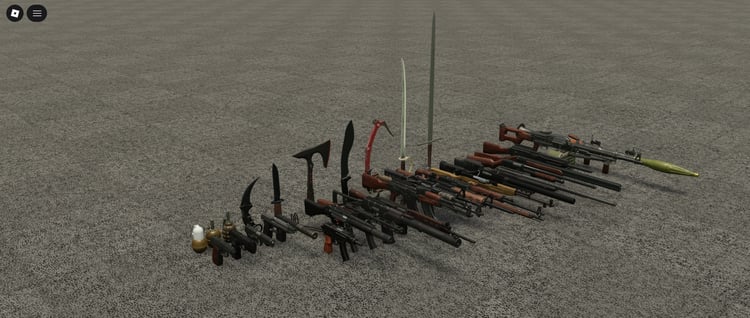
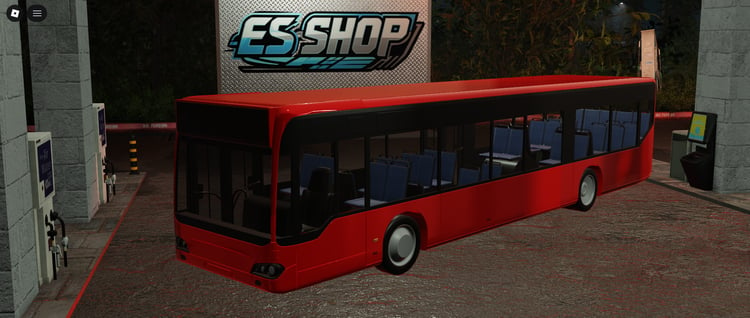
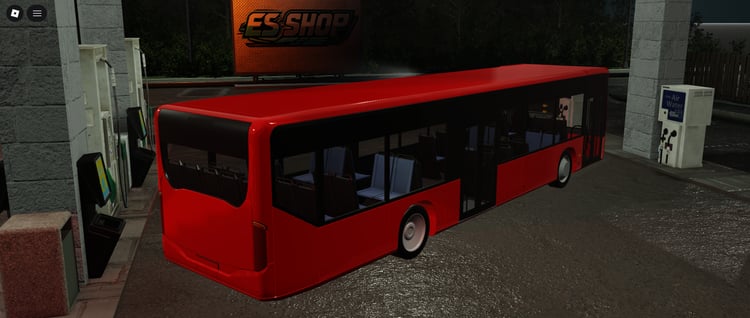
- Vehicle or weapon operation
- Multiplayer behavior
- Included configuration options
Evidence is especially important for expensive maps and complete games.
3. Estimate the Required Setup
Many Roblox assets require configuration after purchase. You may need to replace group IDs, gamepass IDs, product IDs, badges, team names, branding or data-store settings.
Roblox also requires a place file to be published correctly before it becomes a live experience. Roblox’s official process begins through File → Publish to Roblox in Studio.
A product that requires setup is not necessarily broken. The important question is whether that setup is explained honestly.
4. Read the Licence
Check whether the purchase allows:
- Commercial Roblox game use
- Editing and customization
- Use by a development team
- Client work
- Use across multiple experiences
- Redistribution or resale
Never assume that buying a file transfers its copyright or gives you the right to resell it.
5. Check the Seller and Support Route
Review the seller’s profile, other products, social connections and support information. A seller with a consistent identity and active portfolio is easier to evaluate than an anonymous account with one unexplained upload.
Test Before Launching
Always test purchased files in a private copy before publishing them into your main production game. Inspect scripts, verify permissions and check performance on more than one device where possible.
Internal links
- “Digital Asset License” → https://kwstudio.org/digital-asset-license
- “KW Studio Help and Wiki” → https://kwstudio.org/kw-studio-help-wiki
- “contact KW Studio” → https://kwstudio.org/contact
- “browse Roblox assets” → https://kwstudio.org/collection/roblox-asset-store
External source
- “Publish a Roblox experience correctly” → https://create.roblox.com/docs/production/publishing/publish-games-and-places


![[FREE] Roblox Clicker Simulator basic pet hatching system](https://payhip.com/cdn-cgi/image/format=auto,width=750/https://pe56d.s3.amazonaws.com/o_1j2chs7utup8g3p195f16tq19t015.png)
![[FREE] Roblox clicker game with 2 egg options for pets](https://payhip.com/cdn-cgi/image/format=auto,width=750/https://pe56d.s3.amazonaws.com/o_1j2chse8o1bha1ea41438mso5011b.png)


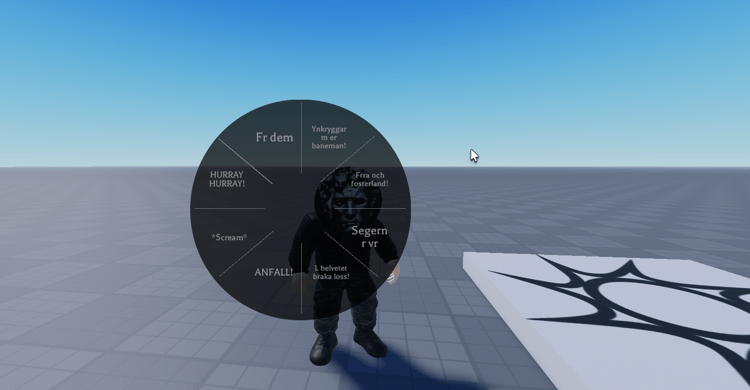
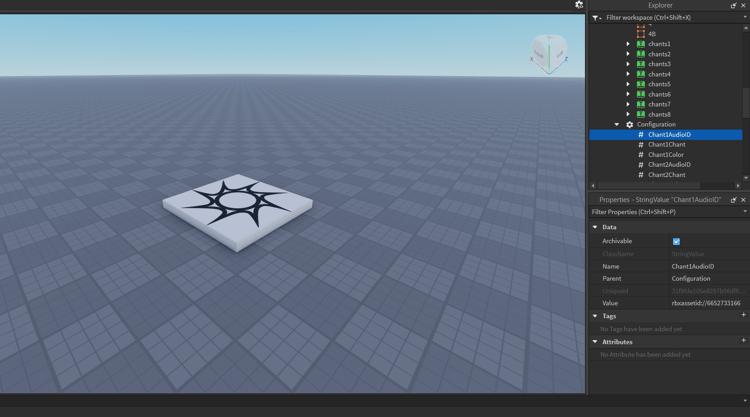
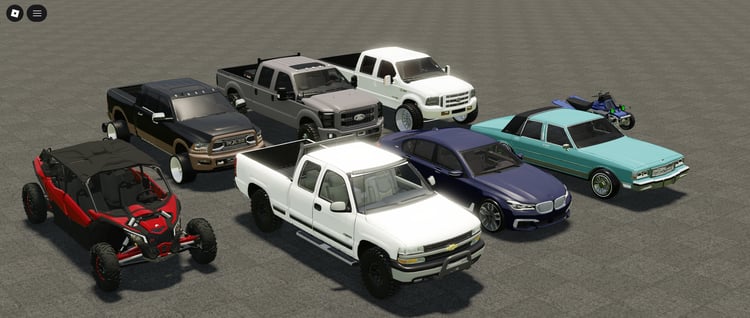
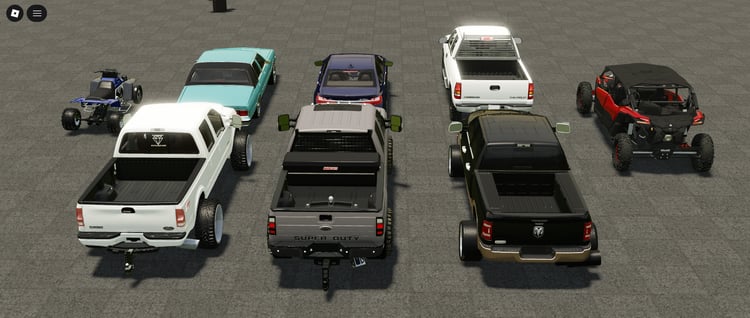
![[FREE] Roblox shop menu scripted UI interface](https://payhip.com/cdn-cgi/image/format=auto,width=750/https://pe56d.s3.amazonaws.com/o_1j2cirgga1i9r12itiast7etr91c.png)
![[FREE] Scripted shop menu with item categories](https://payhip.com/cdn-cgi/image/format=auto,width=750/https://pe56d.s3.amazonaws.com/o_1j2cirn0d1vdm1uel18e85ef1opp1i.png)
![[FREE] Roblox 2 Player Battle FortBlox Tycoon arena top view](https://payhip.com/cdn-cgi/image/format=auto,width=750/https://pe56d.s3.amazonaws.com/o_1j2ch3uji1pr4144317nt13ccbud10.png)
![[FREE] Two-player base building in FortBlox Tycoon](https://payhip.com/cdn-cgi/image/format=auto,width=750/https://pe56d.s3.amazonaws.com/o_1j2ch8833ij61sf06boa7o5ci16.png)
![[FREE] Working Roblox avatar creator customization menu](https://payhip.com/cdn-cgi/image/format=auto,width=750/https://pe56d.s3.amazonaws.com/o_1j2cid0jdqjphs39e01n8710p310.png)
![[FREE] Realistic Roblox avatar with clothing options](https://payhip.com/cdn-cgi/image/format=auto,width=750/https://pe56d.s3.amazonaws.com/o_1j2cid3u91cbm1v27q821fi810ig15.png)